
Cards
How to Pay for ChatGPT Subscription from Russia
#service-payments
Subscribing to ChatGPT is a challenge that more and more users face. Some find their bank cards are declined at checkout. Others hold cryptocurrency but can't use it directly to pay for services.
Comparison with Other Payment Methods
Bank cards. Require an active bank account. Often blocked for international transactions or rejected by foreign platforms.
Third-party virtual cards. Usually require document verification. Above-average top-up fees. Not accepted by all services.
PayPal and similar systems. Require a linked bank card. Not available in all countries. Currency conversion comes with additional charges.
Heleket advantages:
- Card issued in minutes
- Topped up with cryptocurrency
- Accepted on all international platforms
- No documents required to register
- Minimal fees
One card covers multiple subscriptions: ChatGPT, cloud services, productivity tools, and content creation platforms. All you need to get started is an email address and an initial deposit. Details below.
How to Create a Heleket Card
Registration
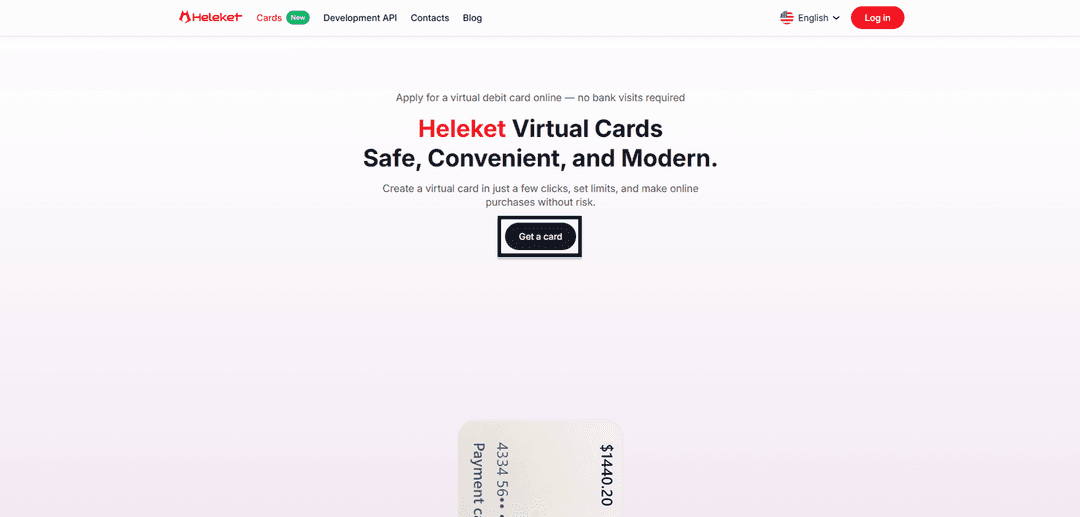
- Go to the Cards section on the Heleket website and click Get a card.
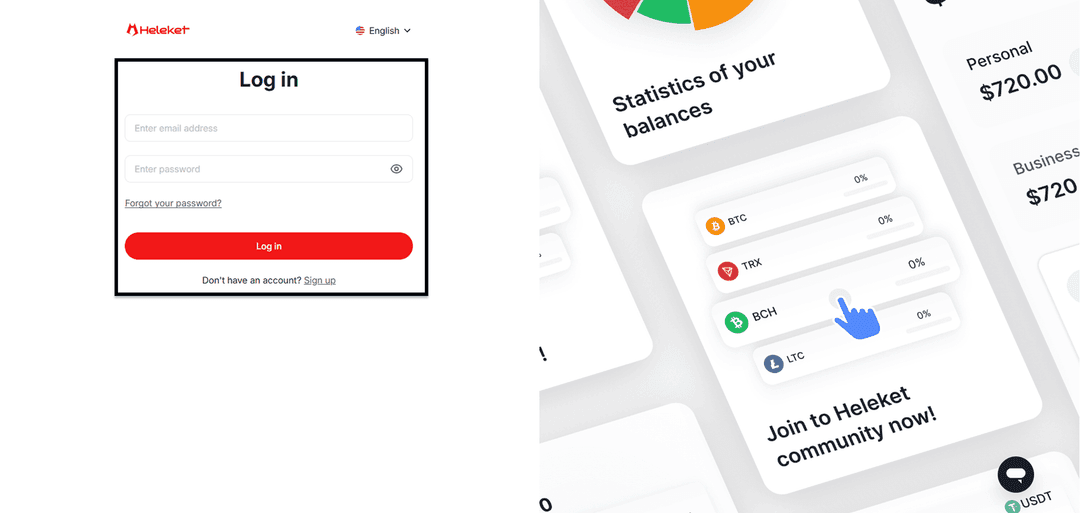
- Create a Heleket account or log in if you already have one.
Creating the Card
- Top up your Heleket personal wallet with at least $20. Click Top up, then select your wallet and network.
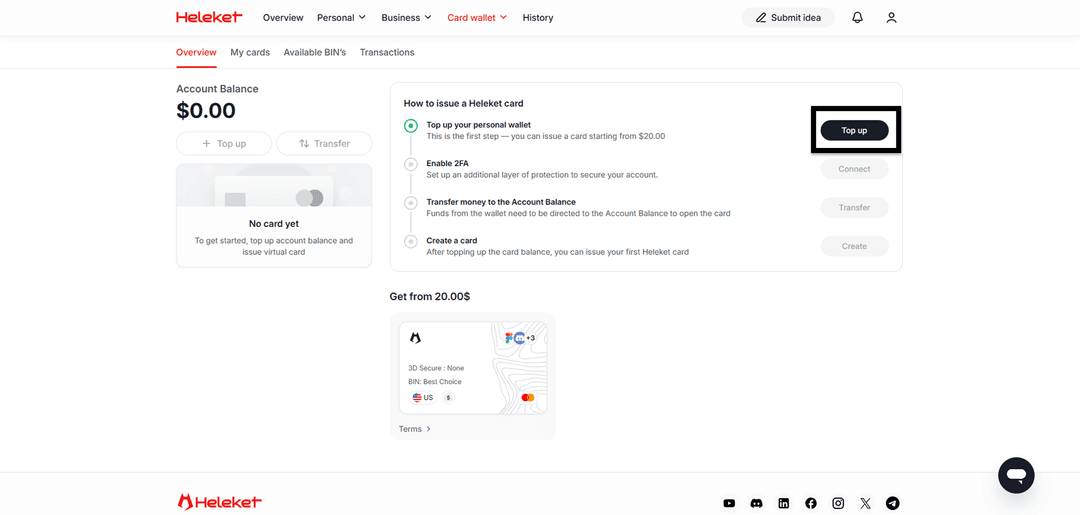
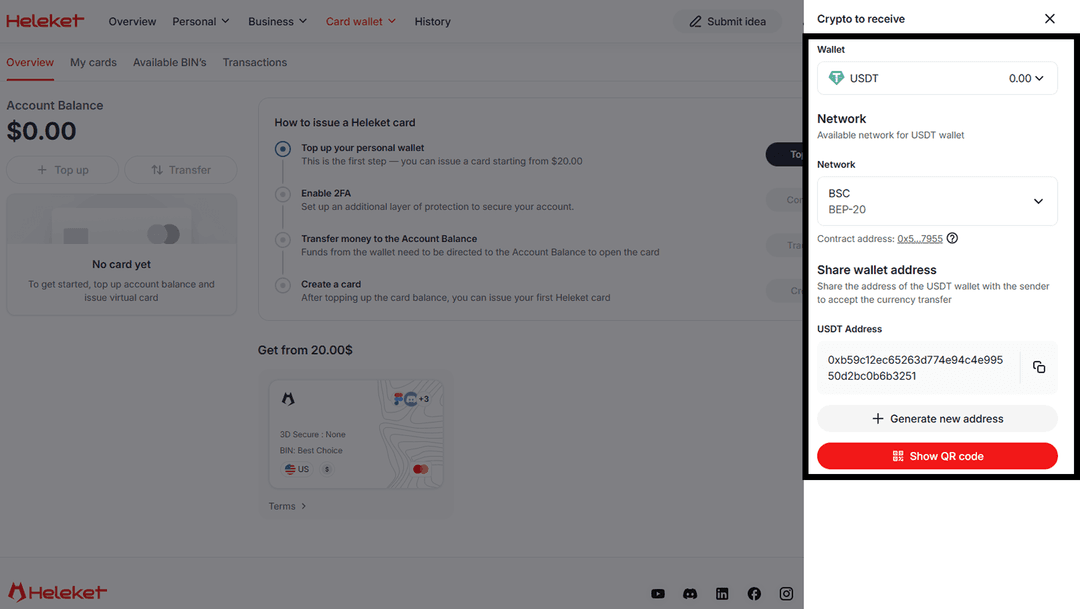
- Enable two-factor authentication (2FA).
- Transfer funds from your wallet to your card account.
- Once the balance is credited, issue your card.
How to Pay for ChatGPT Plus with a Heleket Card
The process is identical to any standard card payment. ChatGPT accepts the Heleket card just like any regular payment method.
Open the ChatGPT website or app.
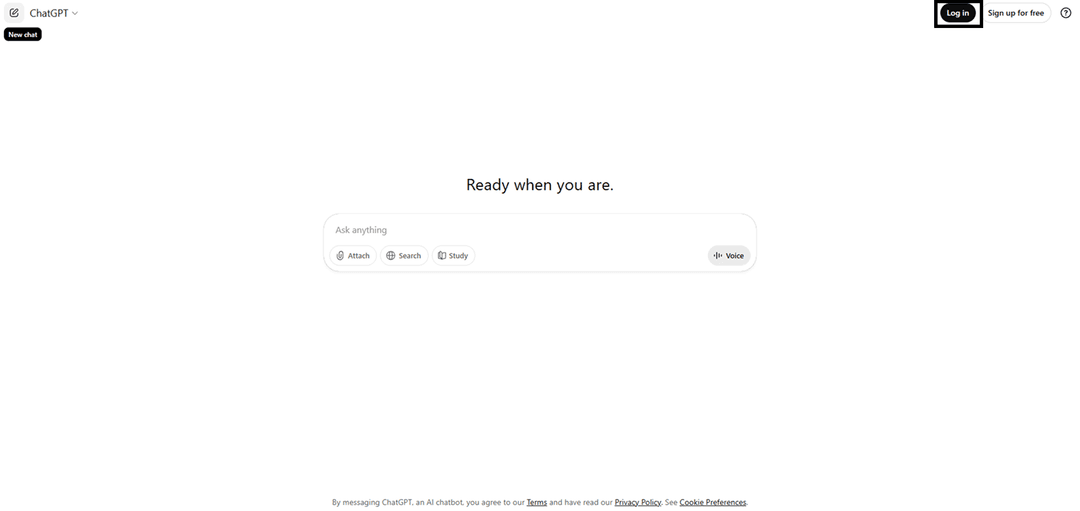
Click Log in or Sign up for free if you don't have an account yet.
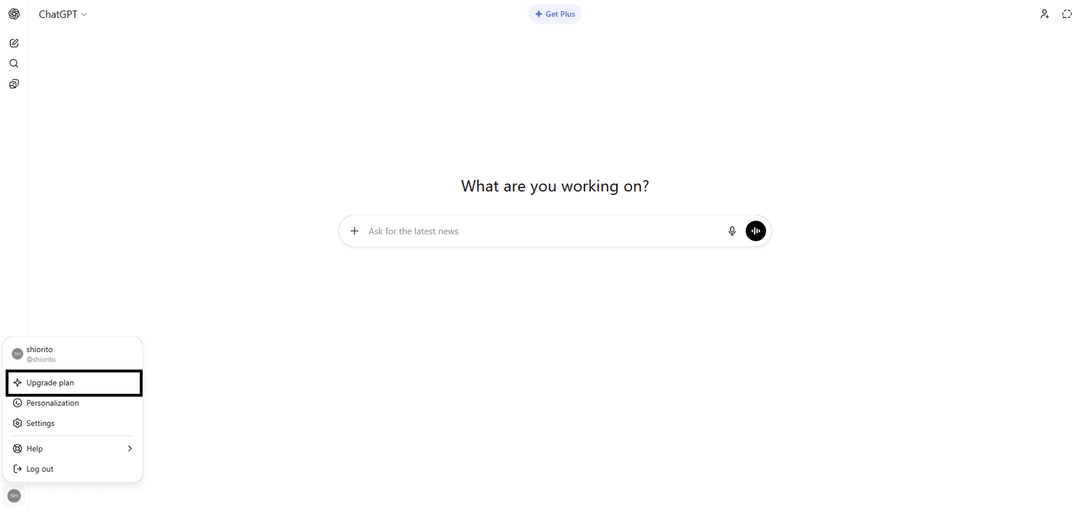
Once logged in, click the profile icon at the bottom of the left sidebar and go to Upgrade plan.
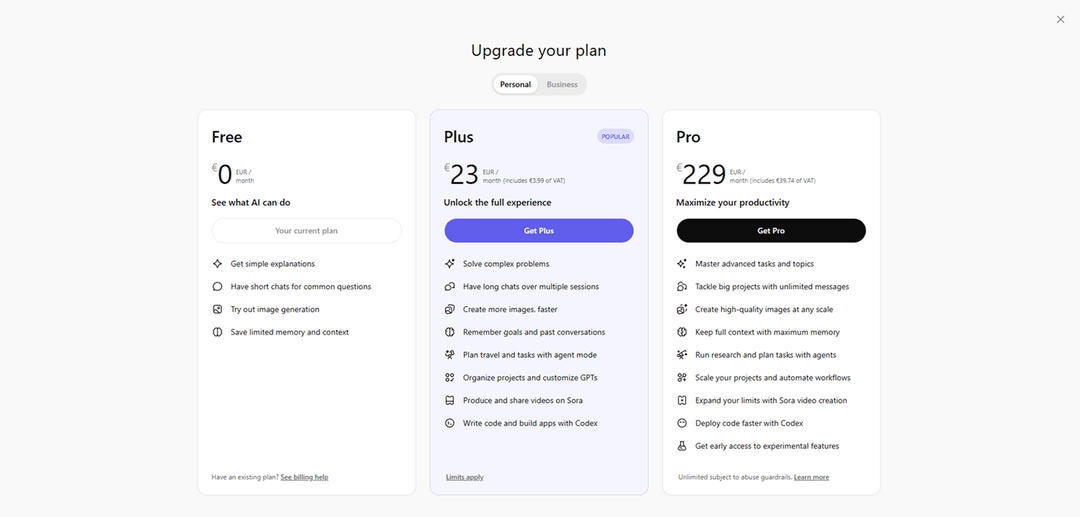
Select the subscription plan that suits you.
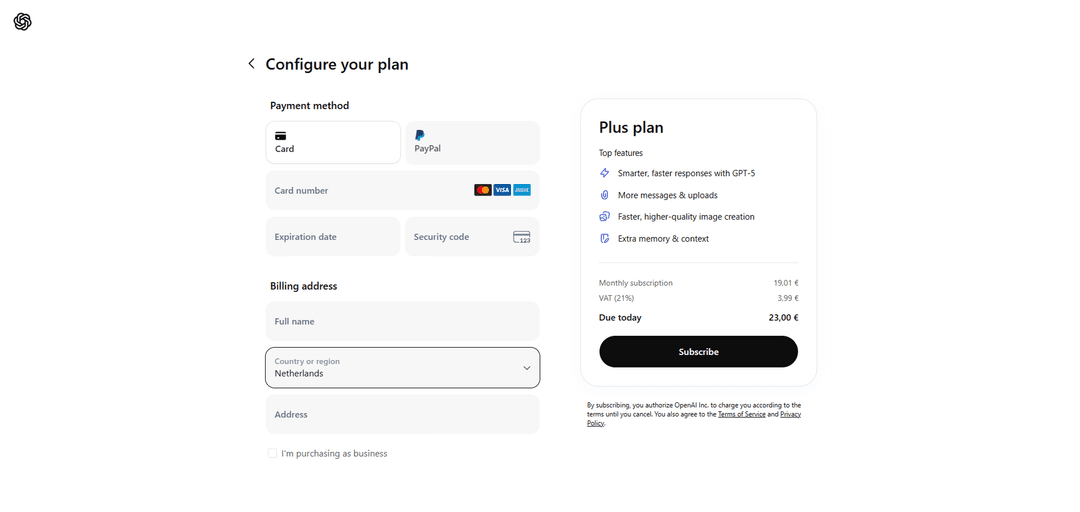
Enter your Heleket virtual card details into the corresponding fields and confirm the payment. The payment card region (USA) must match yours. Use the tools to change your geolocation.
If the payment is declined, check:
- Your card balance
- The accuracy of the card details you entered
- Whether your location-changing tool is working correctly