
Cards
How to Pay for Notion Subscription from Russia
#service-payments
Getting a Notion subscription, like other services, proves difficult for many. Some find their bank cards simply fail at checkout. Cryptocurrency holders face the fact that spending digital assets directly on purchases isn't possible.
Overview of Alternative Payment Methods
Bank cards. Require opening a bank account. International payments don't always go through. May get blocked on overseas purchases.
Other virtual cards. Often request document verification. Top-up fees are inflated. Not accepted by all platforms.
PayPal and payment systems. Require bank card linking. Regional restrictions apply. Extra currency exchange charges.
Why Heleket:
- Card ready in minutes
- Crypto asset funding
- Works for any foreign subscriptions
- No documents required
- Minimal fees
One card covers not just Notion but other work tools too — cloud storage, project management platforms, content creation services. To get a card, you only need an email and an initial payment. Details below.
How to Get a Heleket Card
Registration
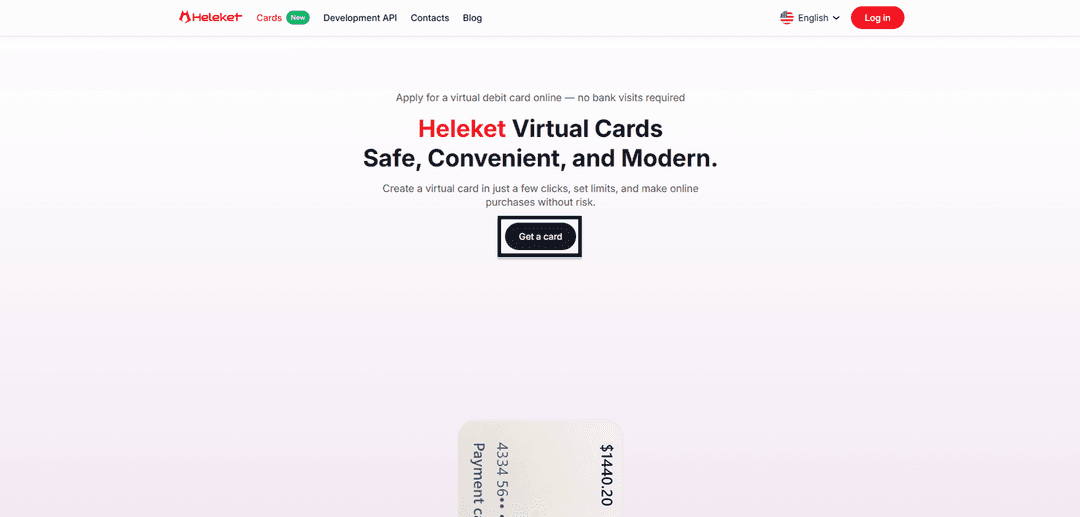
- Open the Cards section on the Heleket website and click the get card button.
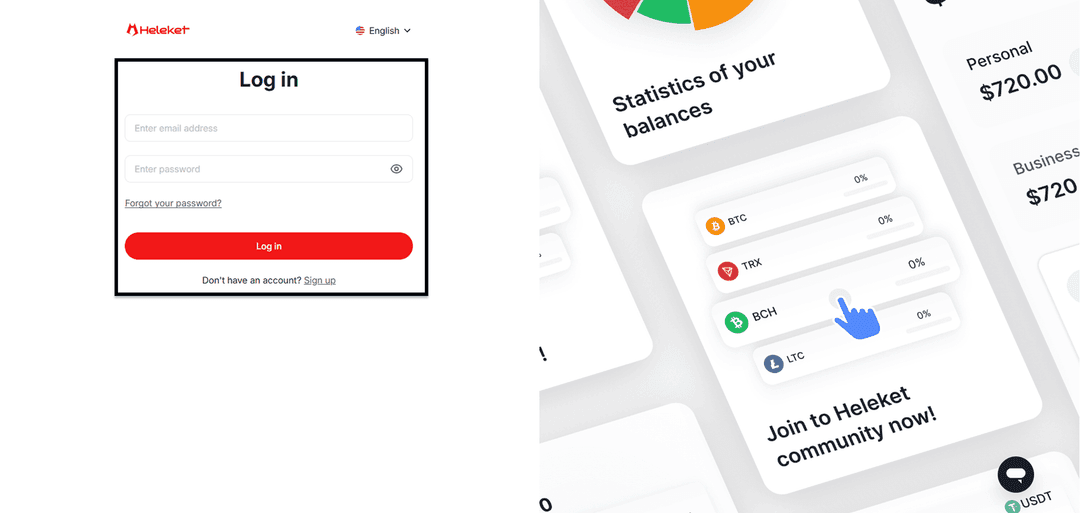
- Complete Heleket registration or sign in if you already have an account.
Card Issuance
- Add at least $20 to your personal Heleket wallet. Click "top up" and select your wallet and network.
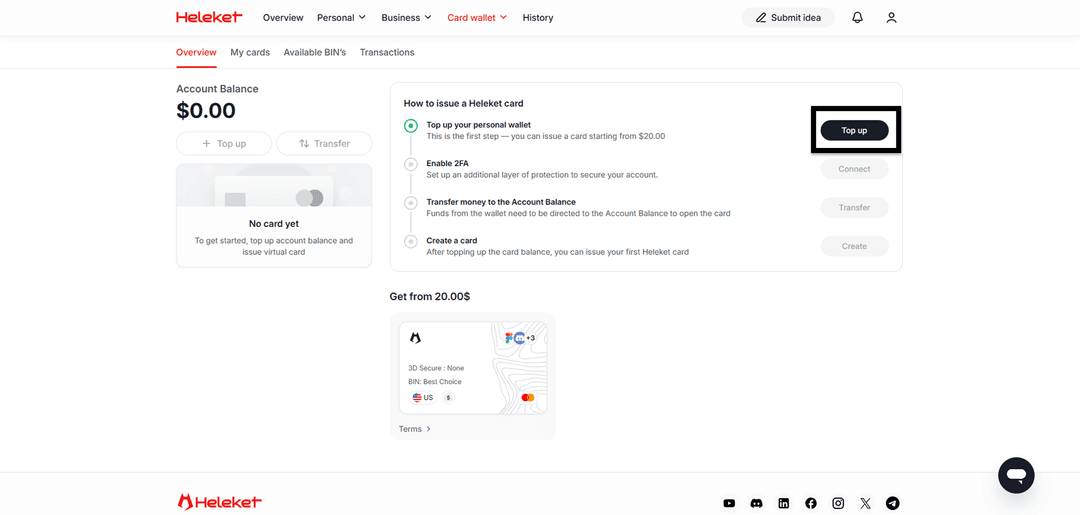
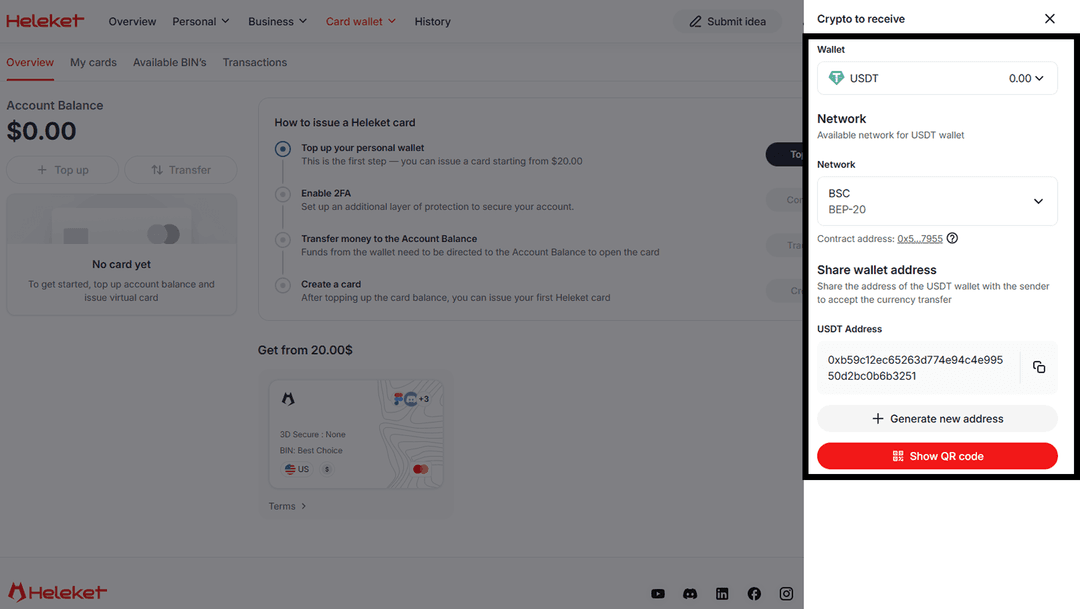
- Enable two-factor authentication (2FA).
- Transfer funds from your wallet to the card account.
- Once the balance is topped up, request card issuance.
Paying for Notion Subscription
The payment procedure is no different from a regular card purchase. Notion recognizes Heleket as a standard payment method.
Authorization
Skip this step if you already have an account.
Open the Notion website or launch the app.
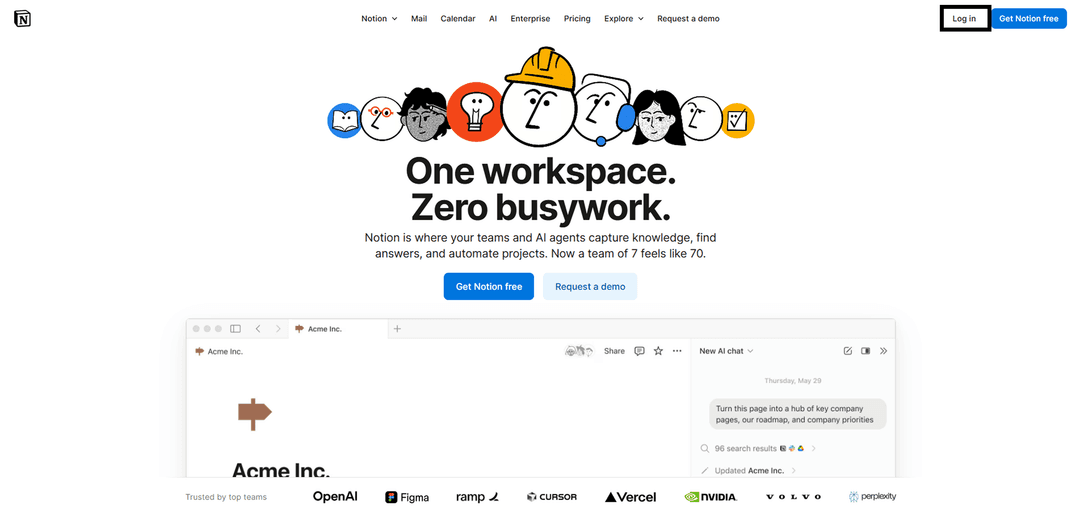
Sign in or create a new account.
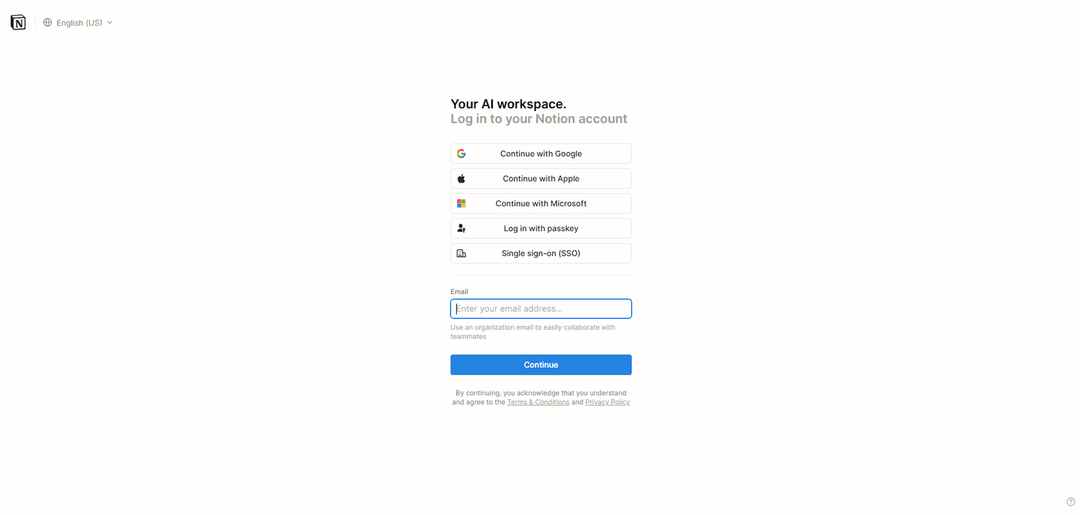
Setting Up Subscription
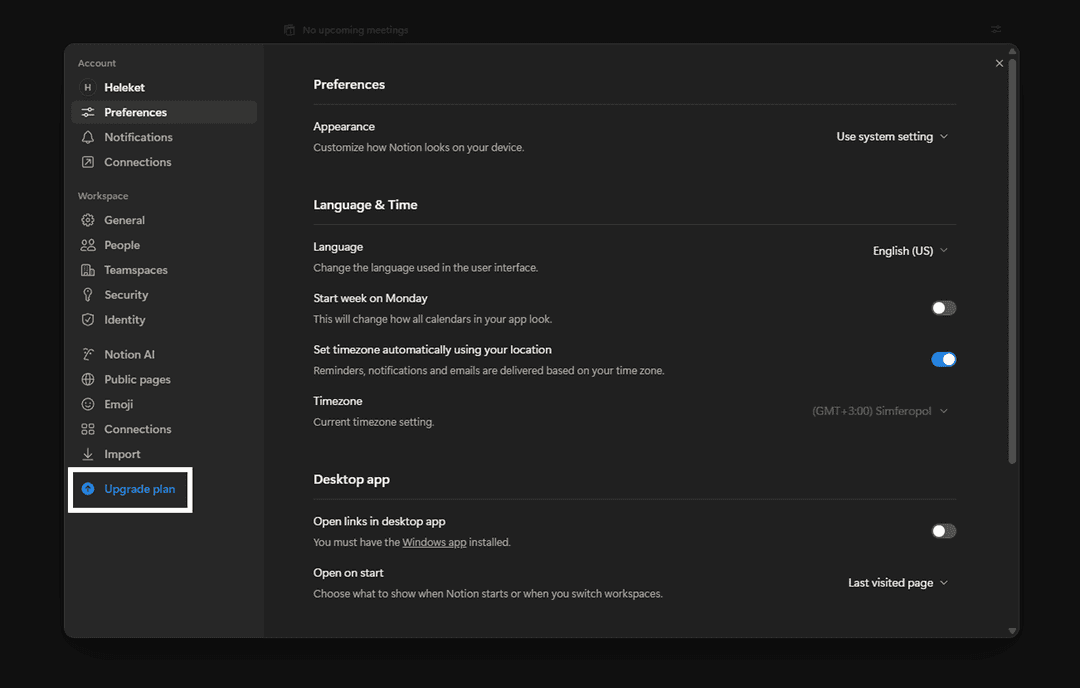
After logging in, open settings.

In the window that appears, select Upgrade Plan.
Choose one of three subscription options.

Fill in all fields with your Heleket virtual card details and confirm the transaction.

The subscription activates immediately after the charge.
If payment is refused:
- Check the card balance
- Verify the entered details are correct
- Confirm the card is activated in your Heleket dashboard
If difficulties arise — contact Heleket support.