How do I issue an invoice?
To issue an invoice, go to Business Wallet → Merchants → your project, then click the "Payment by link" button.
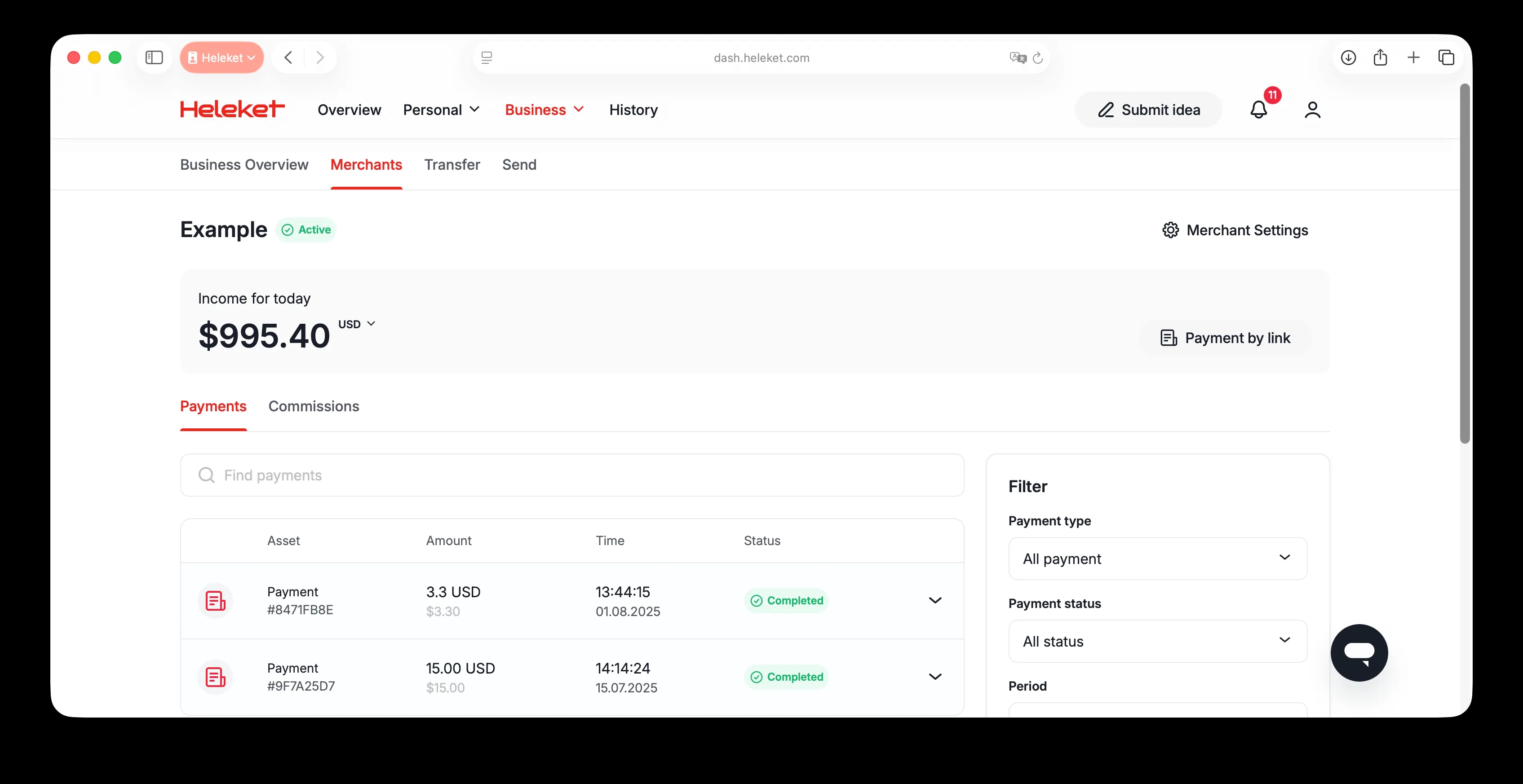
Select the merchant you want to accept payments through and the payment type - account, static wallet top-up.
Enter the amount you'd like your client to pay and select your preferred currency. You can choose who will pay the fee by checking or unchecking the fee box below. Also, fill in the "Order ID" field to help your client understand what they're paying for.
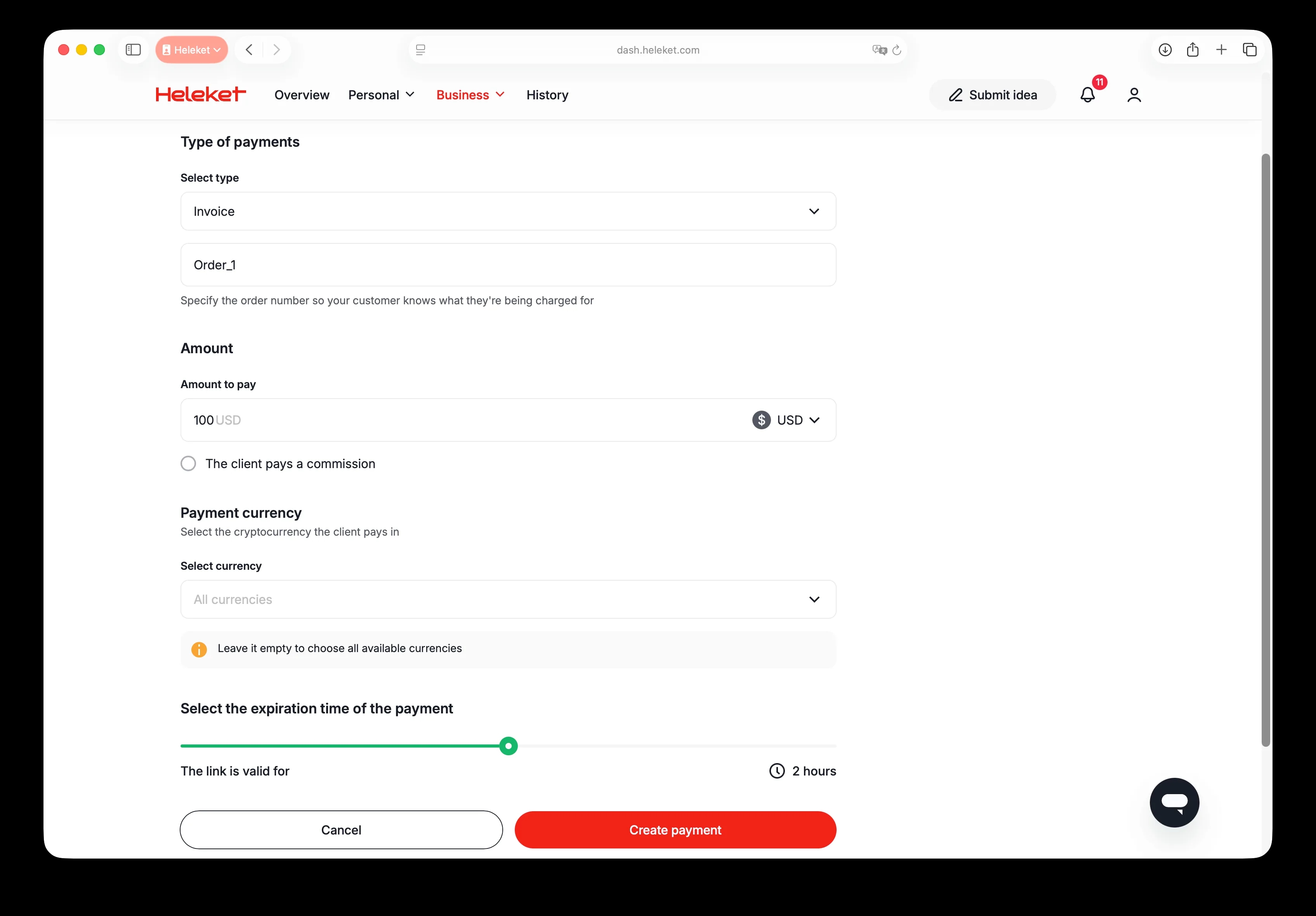
Next, select the payment currency and network. You can also change the link's expiration date by adjusting the "Payment expiration date" slider.
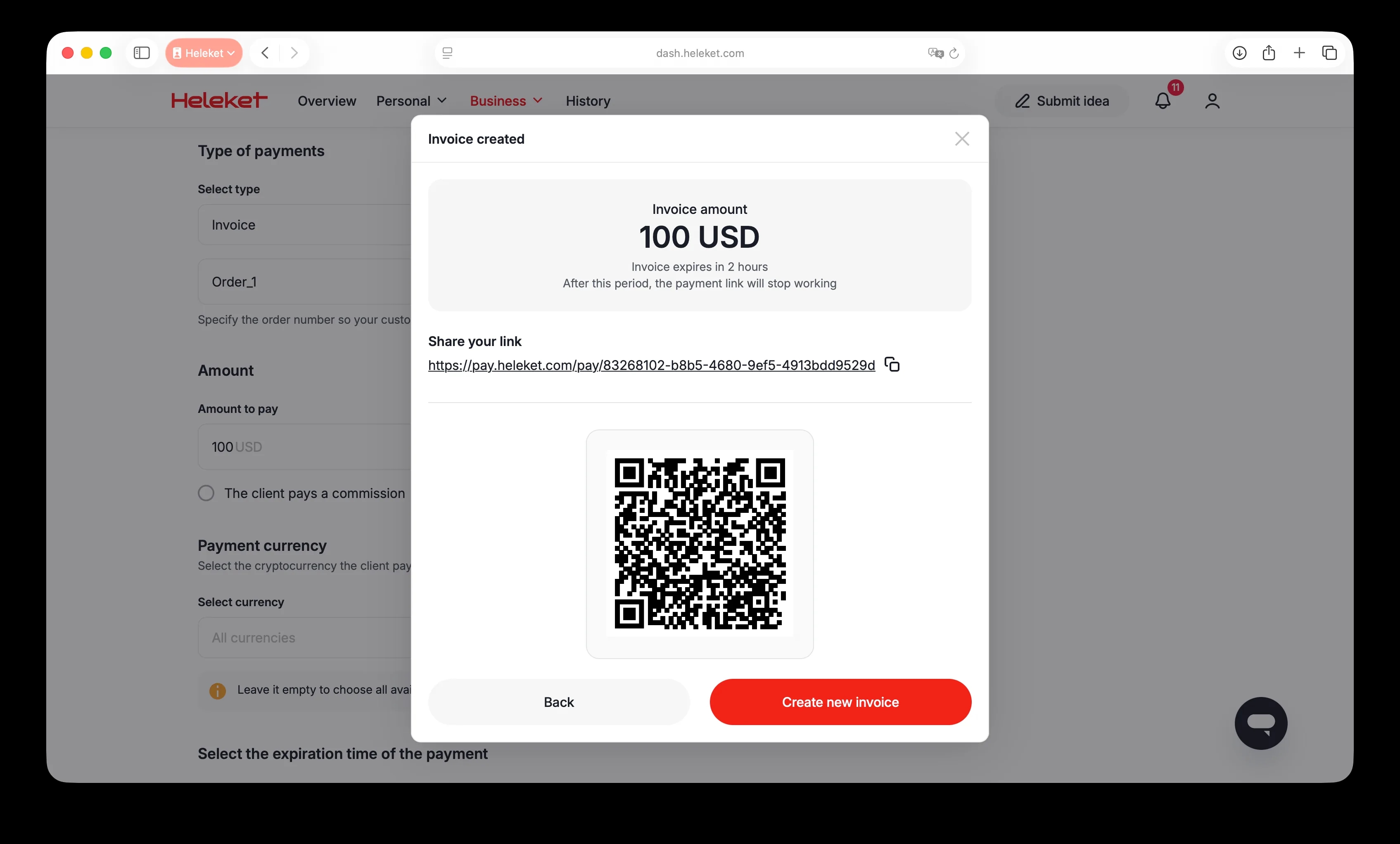
Once you've completed making adjustments, click "Create Payment" and send the link or QR code to your client.
The invoice payment status is tracked in the project history.
Active (black): The invoice has been created and is valid.
Paid (green): The invoice has been paid in full by the customer.
Partially paid (orange): The invoice has not been paid in full.
Expired (Red): The invoice is unpaid and will be automatically cancelled when it expires.
If an invoice expires after a customer has paid it but before the network has confirmed it, the payment status will automatically change to "paid" after several confirmations from the blockchain network.
We recommend creating a new invoice for payment if the current invoice has expired and has not yet been paid.