How can I integrate Heleket into my project?
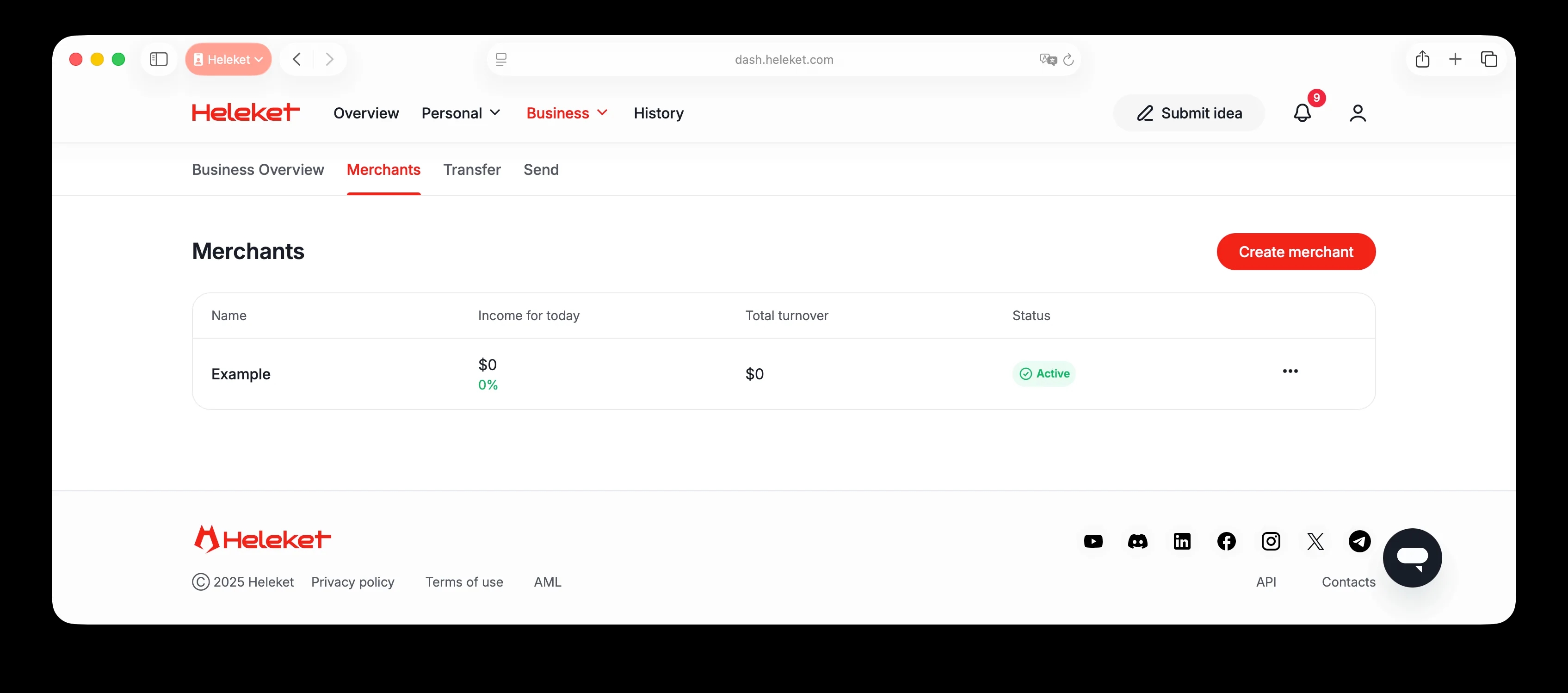
Go to the "Business" → "Merchants" section and select or create the merchant you want to integrate.
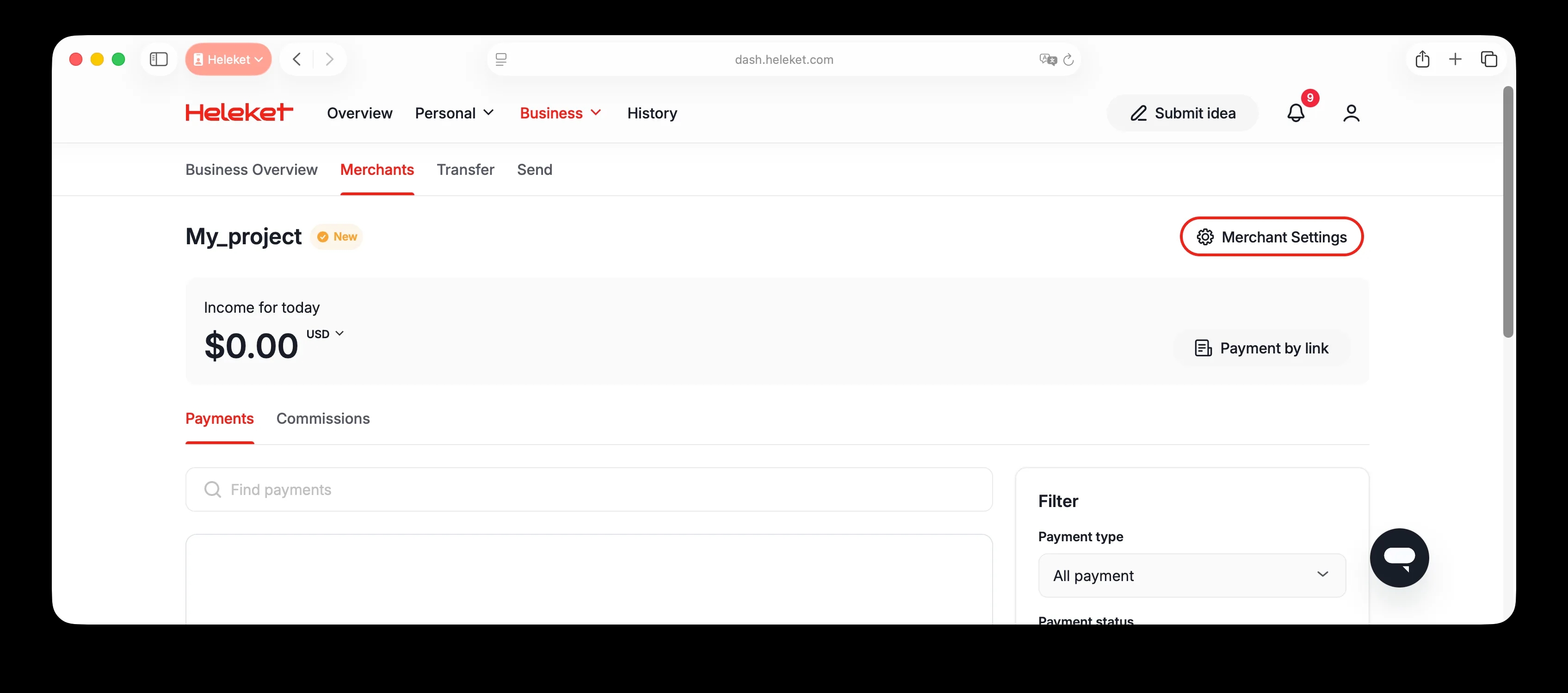
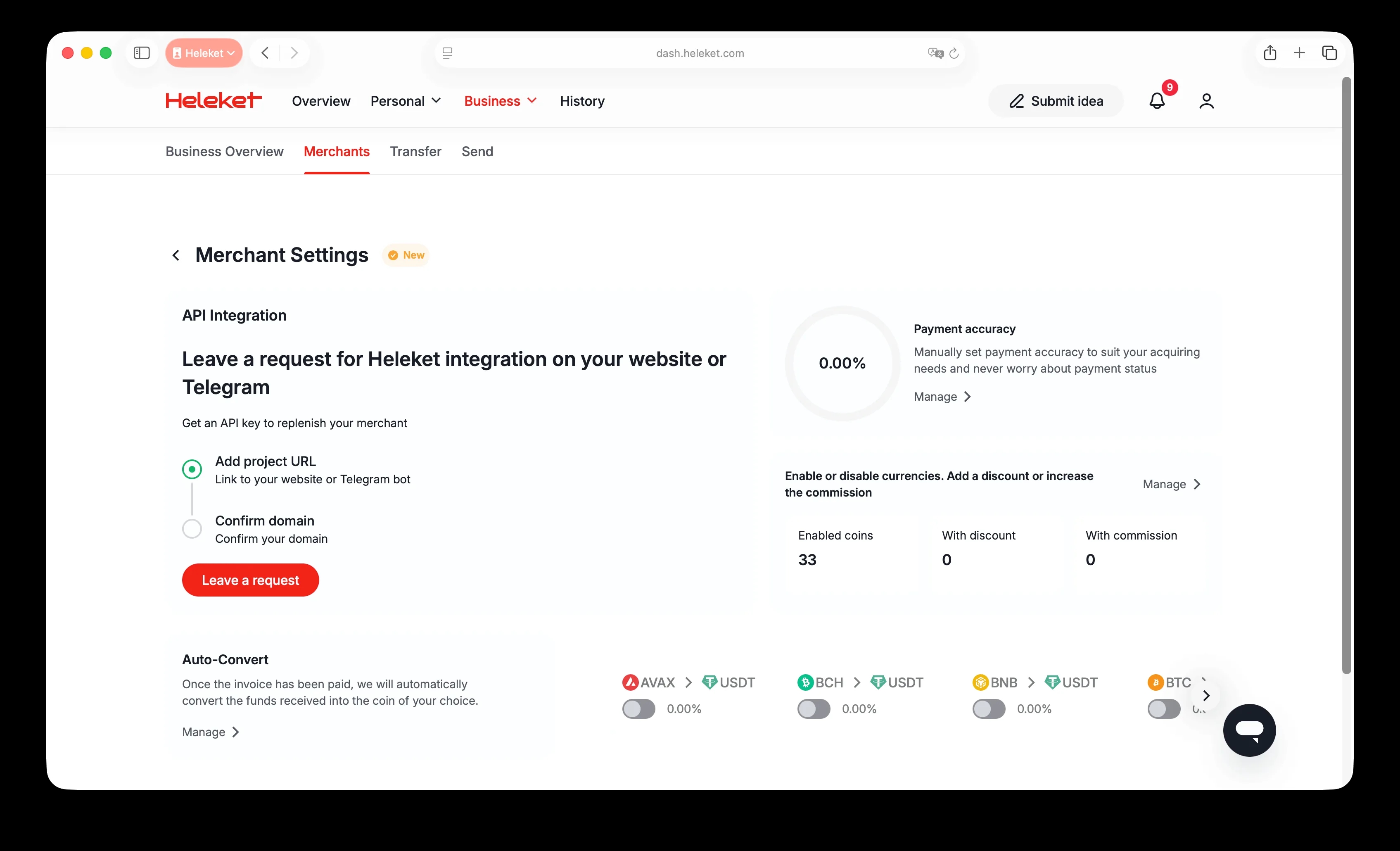
Click "Merchant Settings" and then click "Submit Request".
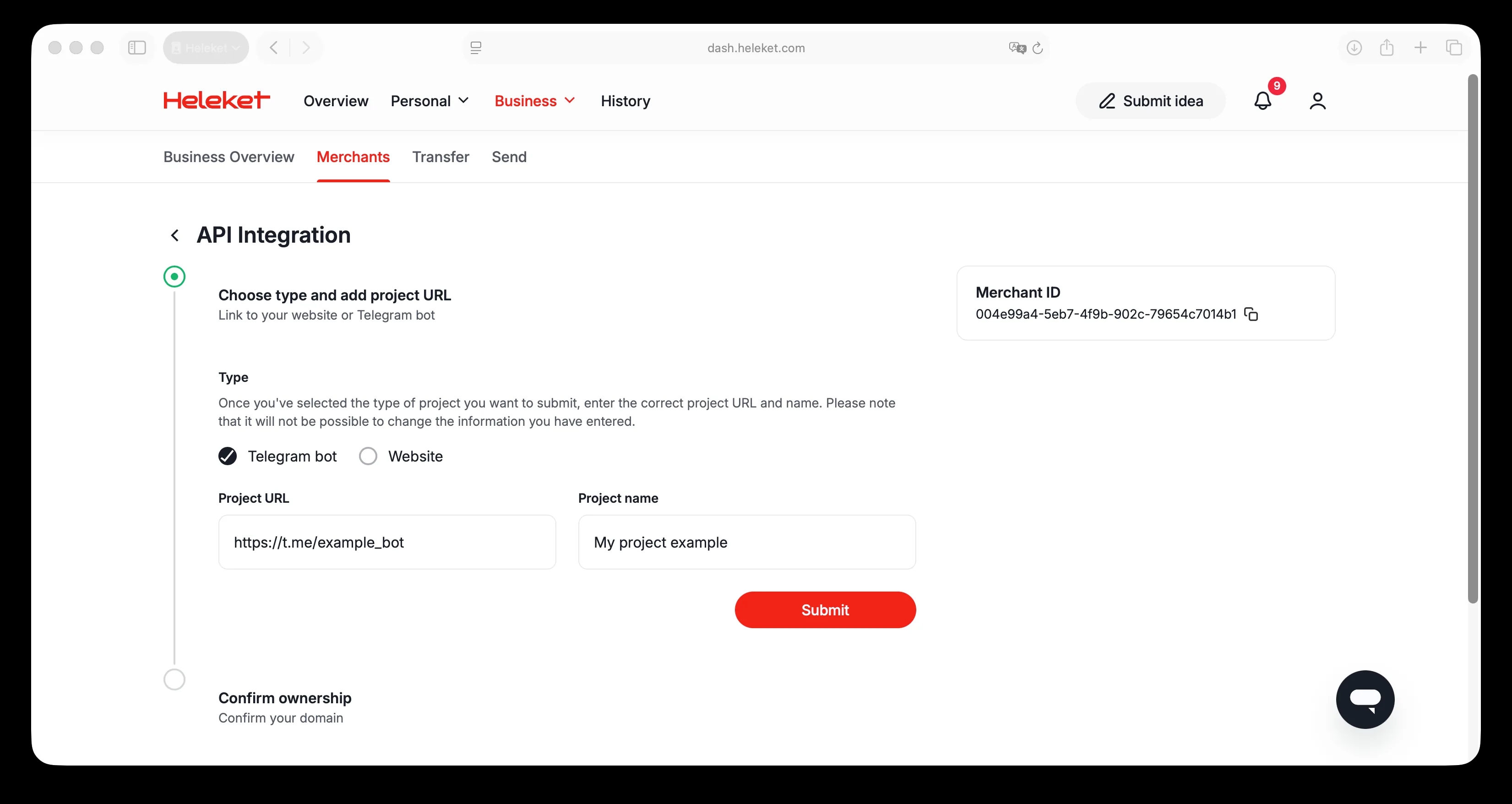
Select the purpose for which the API key will be issued; this could be your website or a Telegram bot. Then, enter the link to your project and its name, and click "Submit." The Telegram bot requires the same information. Wait for moderation to complete.
Select one of the domain verification methods presented
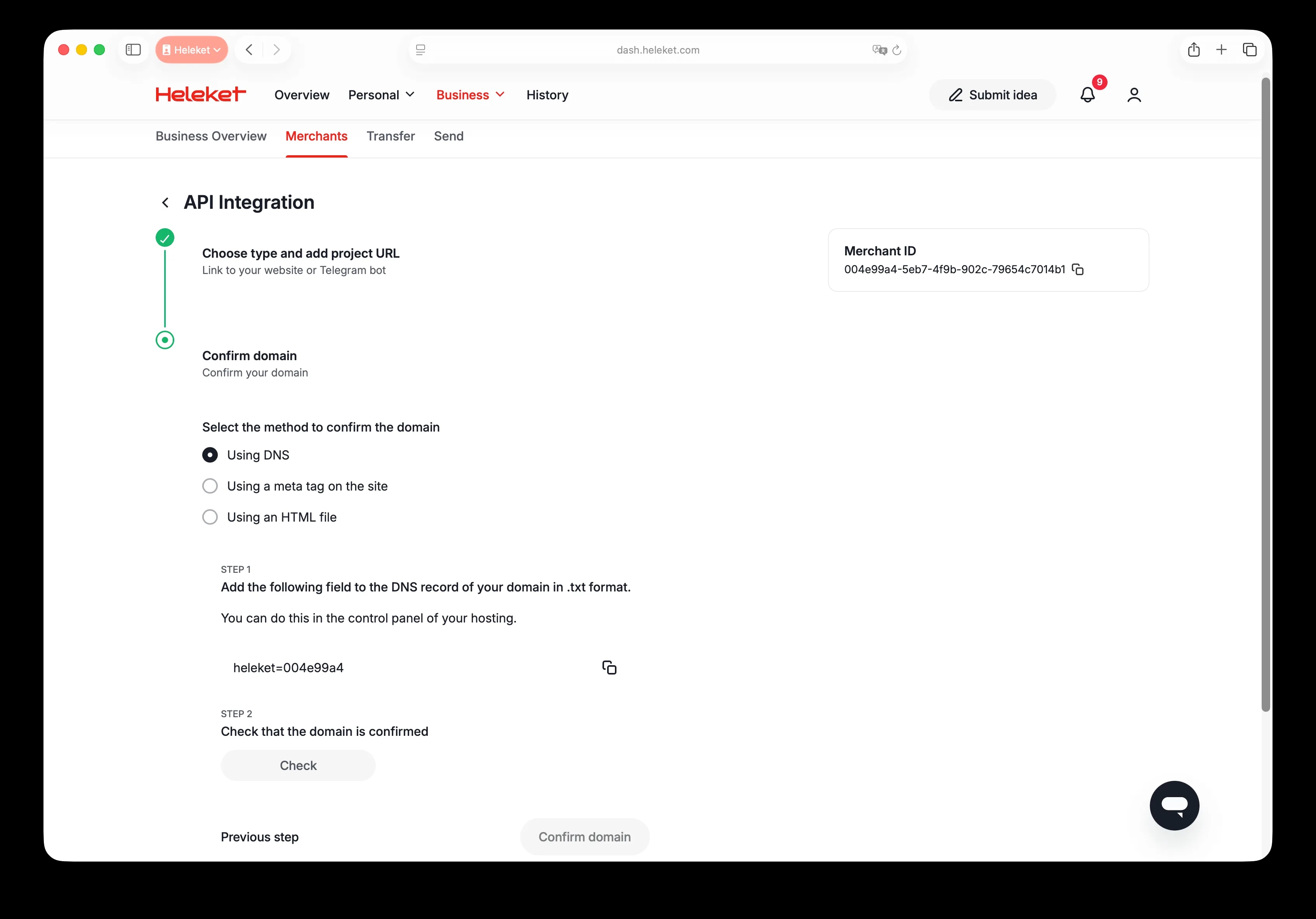
Using DNS
Copy the DNS record from the merchant settings page.
Go to the DNS records setup page in your hosting control panel (we used DigitalOcean as an example hosting solution) and click the Add Record button.
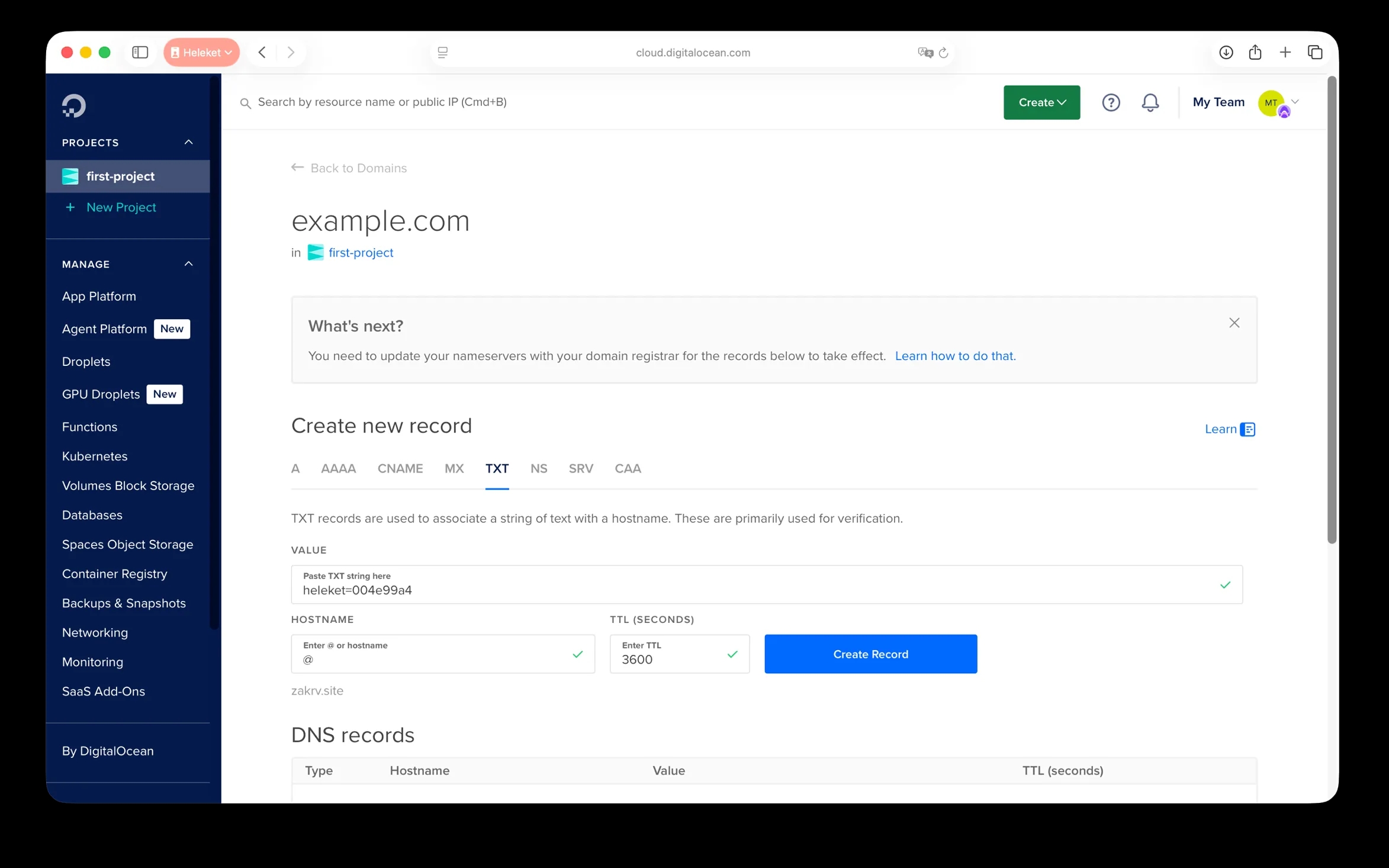
Paste the entry copied from the merchant settings page into your Heleket account and save the settings.
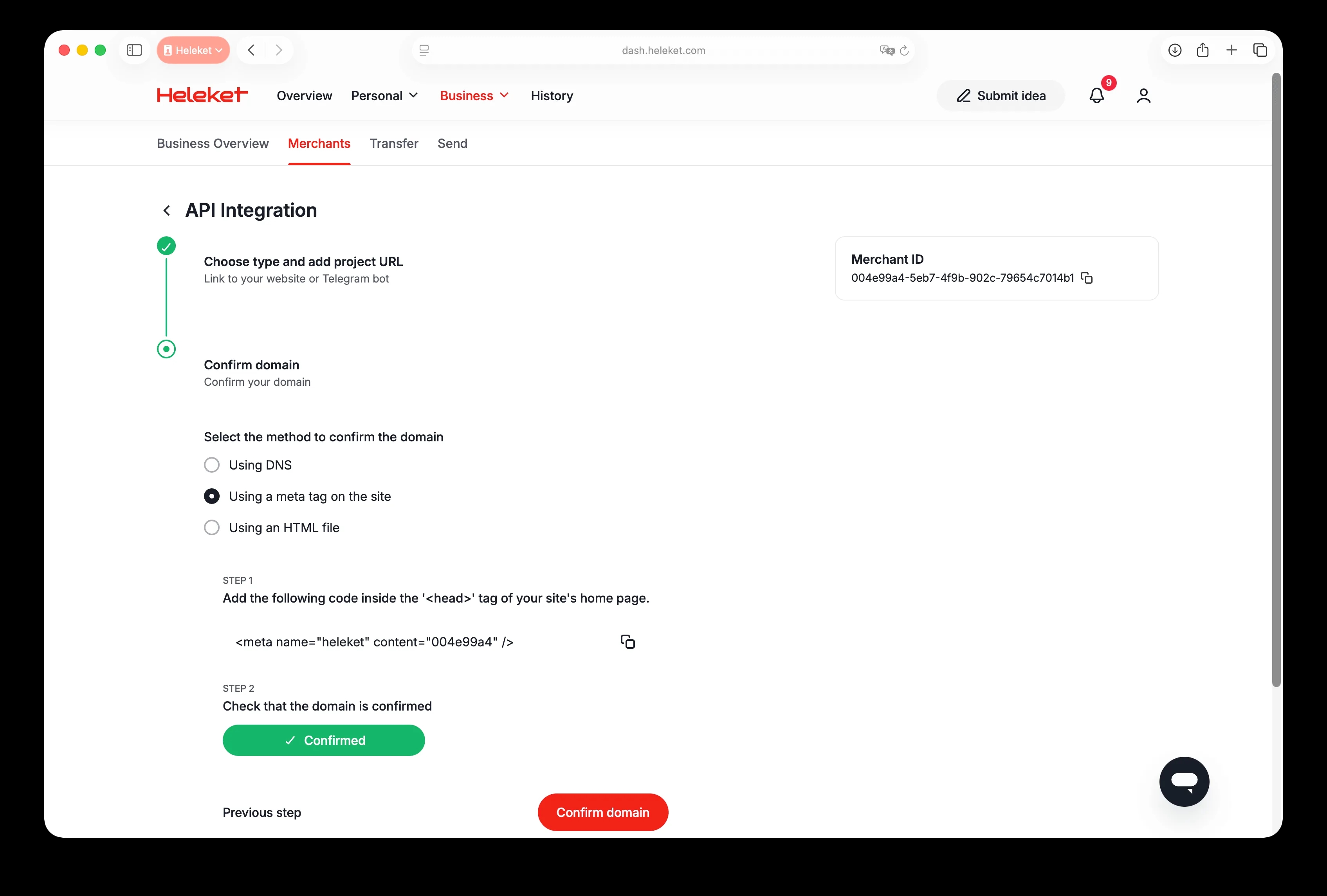
In your Heleket account, click the 'Verify' button. If you've completed everything correctly, the status will change to 'Verified'. Submit a moderation request by clicking the 'Confirm' button.
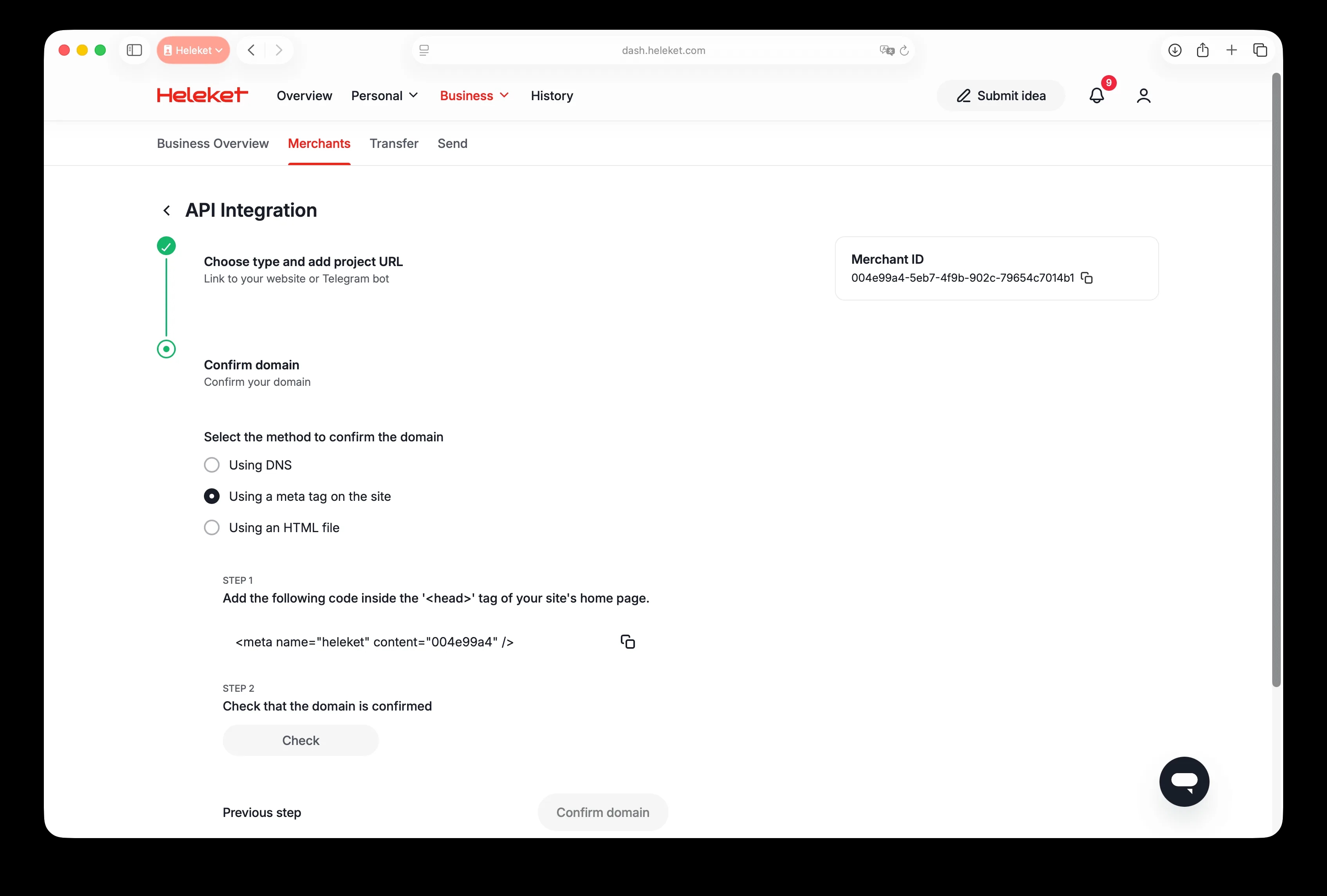
Using a meta tag on a website
Copy the meta tag generated on the confirmation page in the API integration.
Method 1: Your hosting has a built-in file manager (e.g. cPanel, Plesk, etc.).
Go to your hosting's built-in file manager (in this example, we're using Spaceship with cPanel) and find the index.html file or another file that represents your home page.
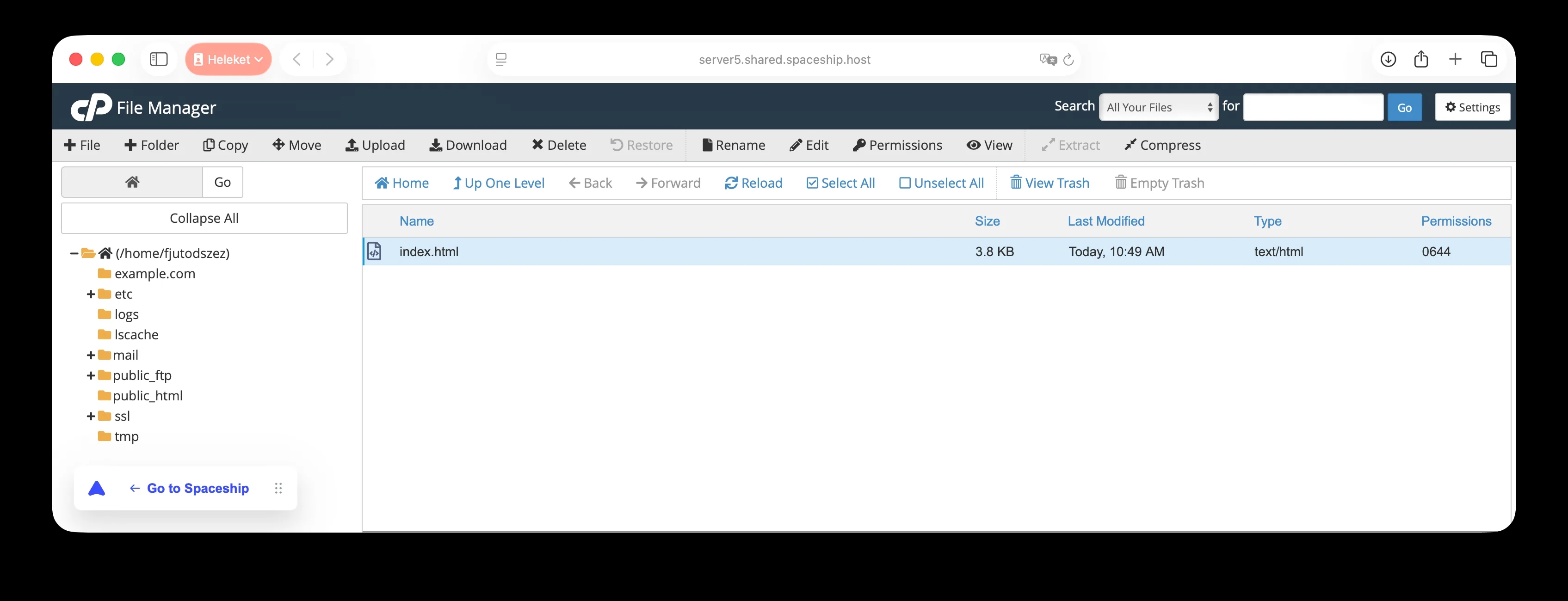
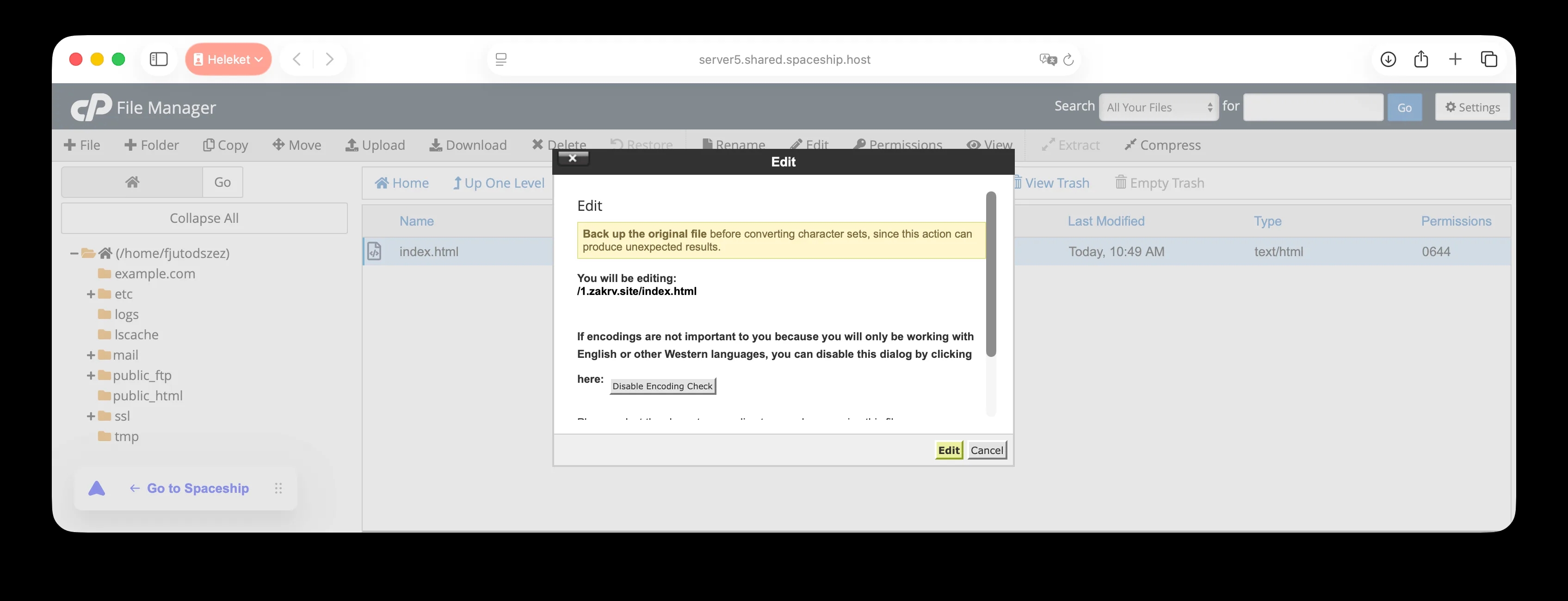
Click the "Edit" button to go to the code editing page. Paste the generated code into the "head" tag and save the settings.
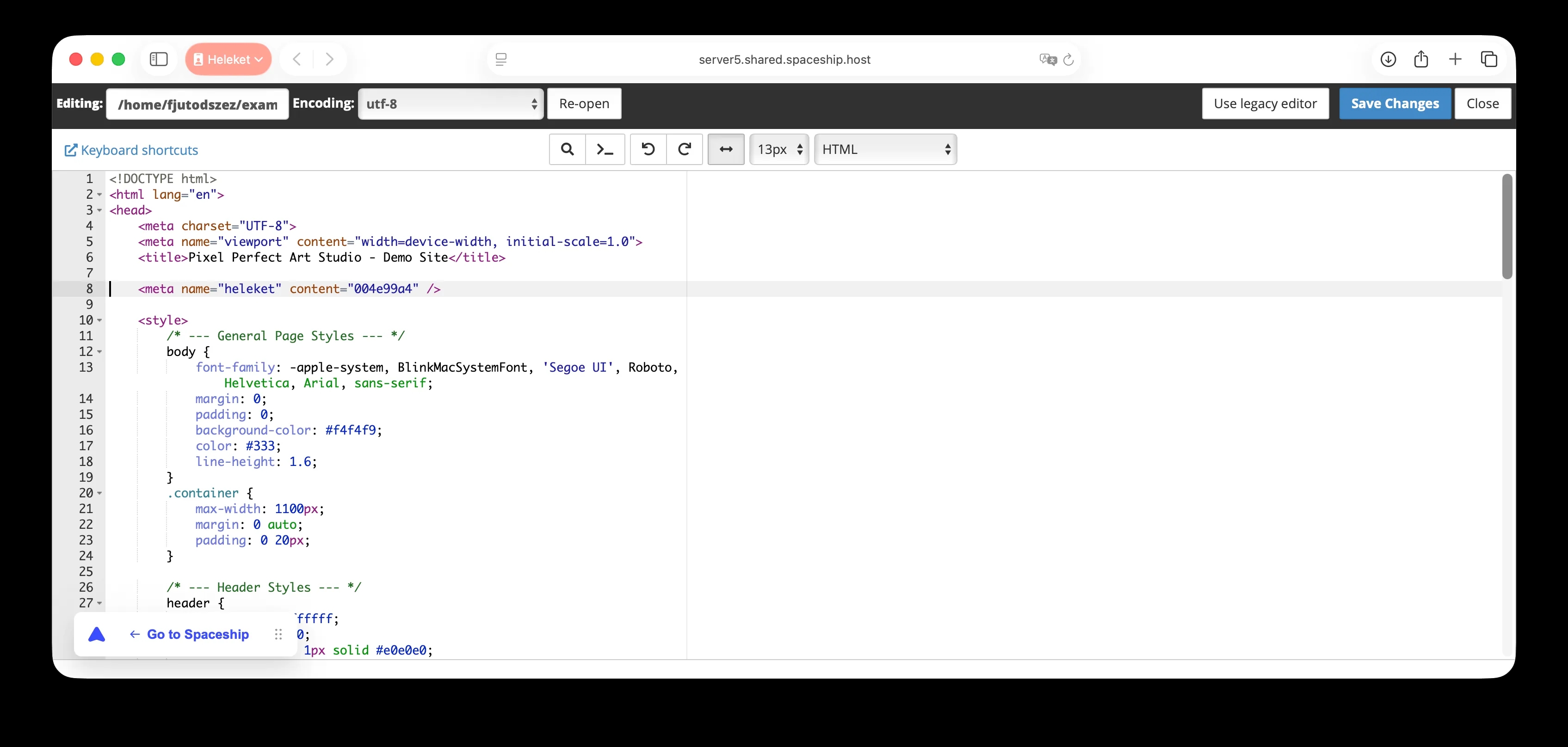
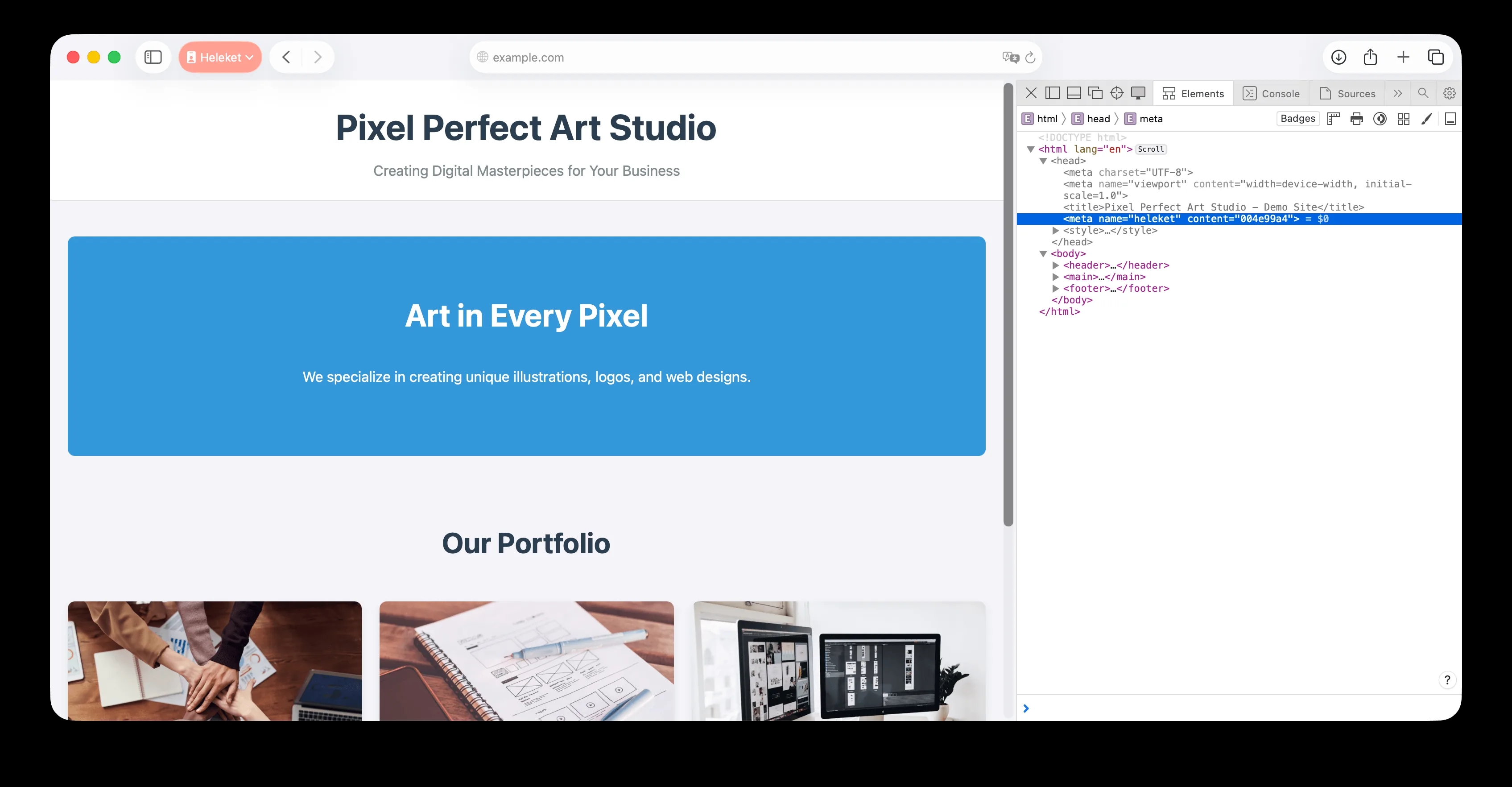
Go to your website, press F12 on your keyboard, and view the code elements of our website. Check for the 'heleket' tag.
Method 2: Your hosting does not have a file manager and requires an SFTP/FTP connection (e.g. DigitalOcean, AWS, Vultr).
Connect to your server using any SFTP/FTP client (e.g., FileZilla, Cyberduck, or WinSCP). To connect, use your server's IP address and credentials (username and password).
Go to the root directory of your website (for example, /var/www/example.com/).
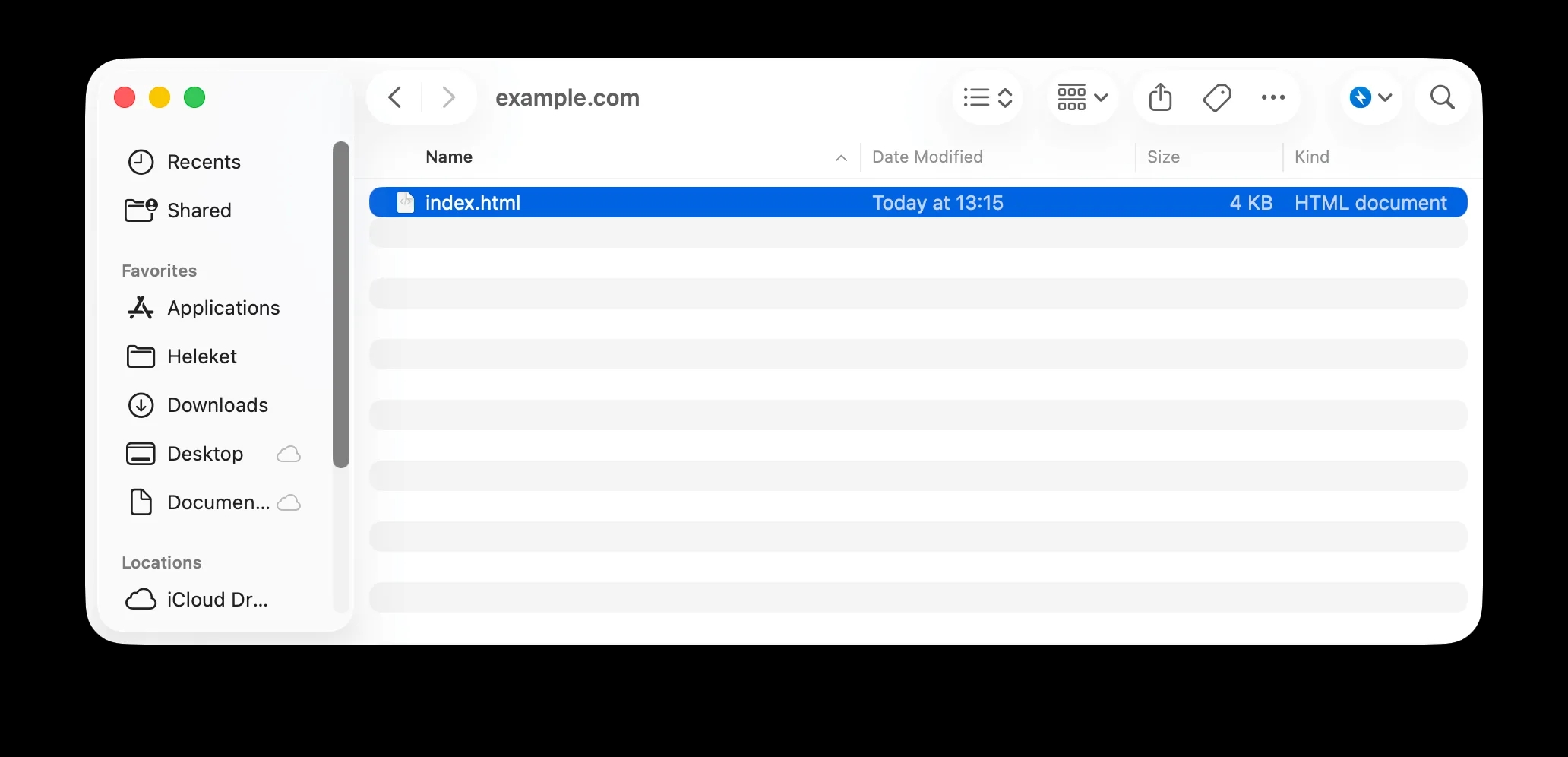
Find your home page file (index.html, index.php, etc.).
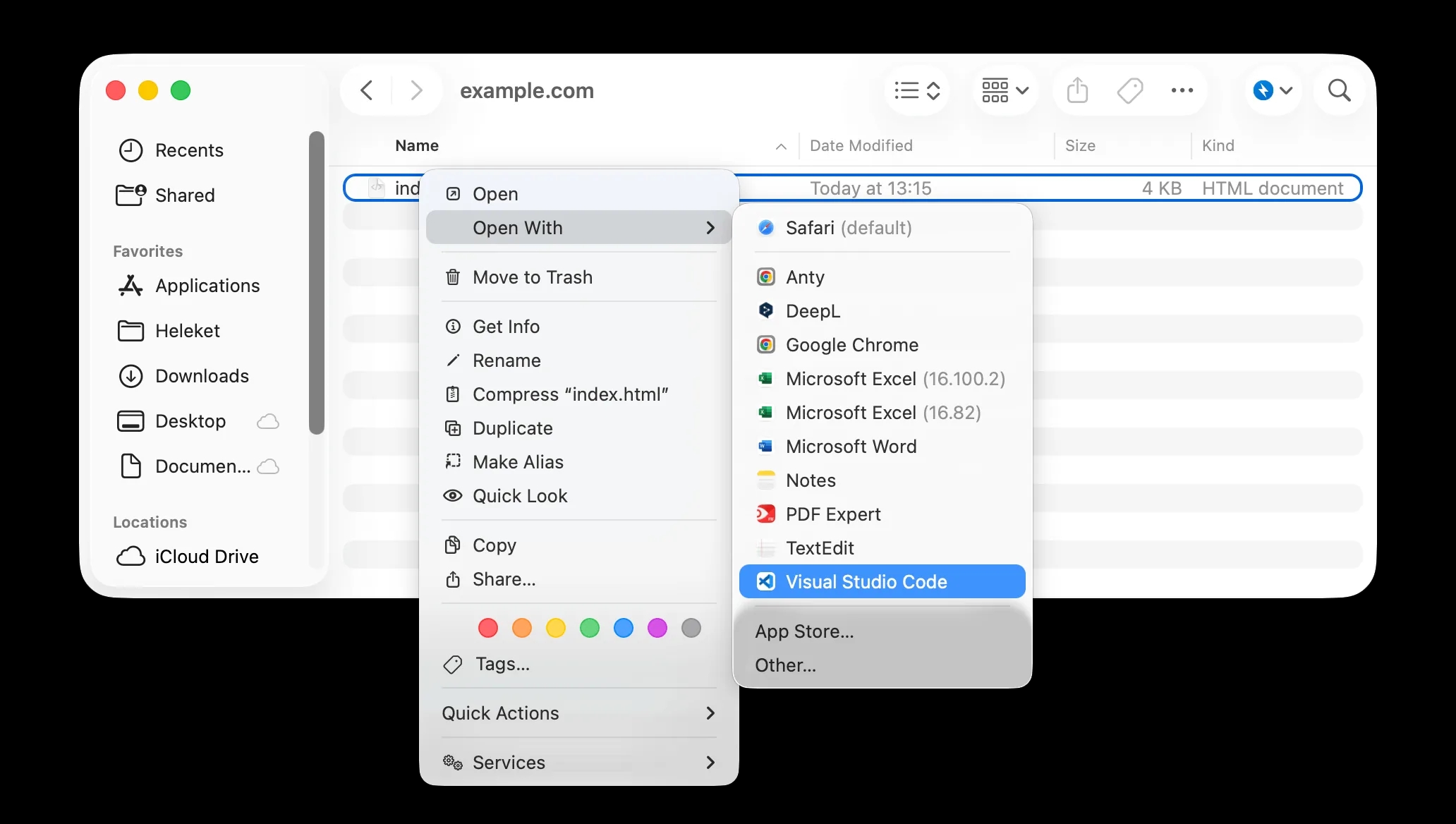
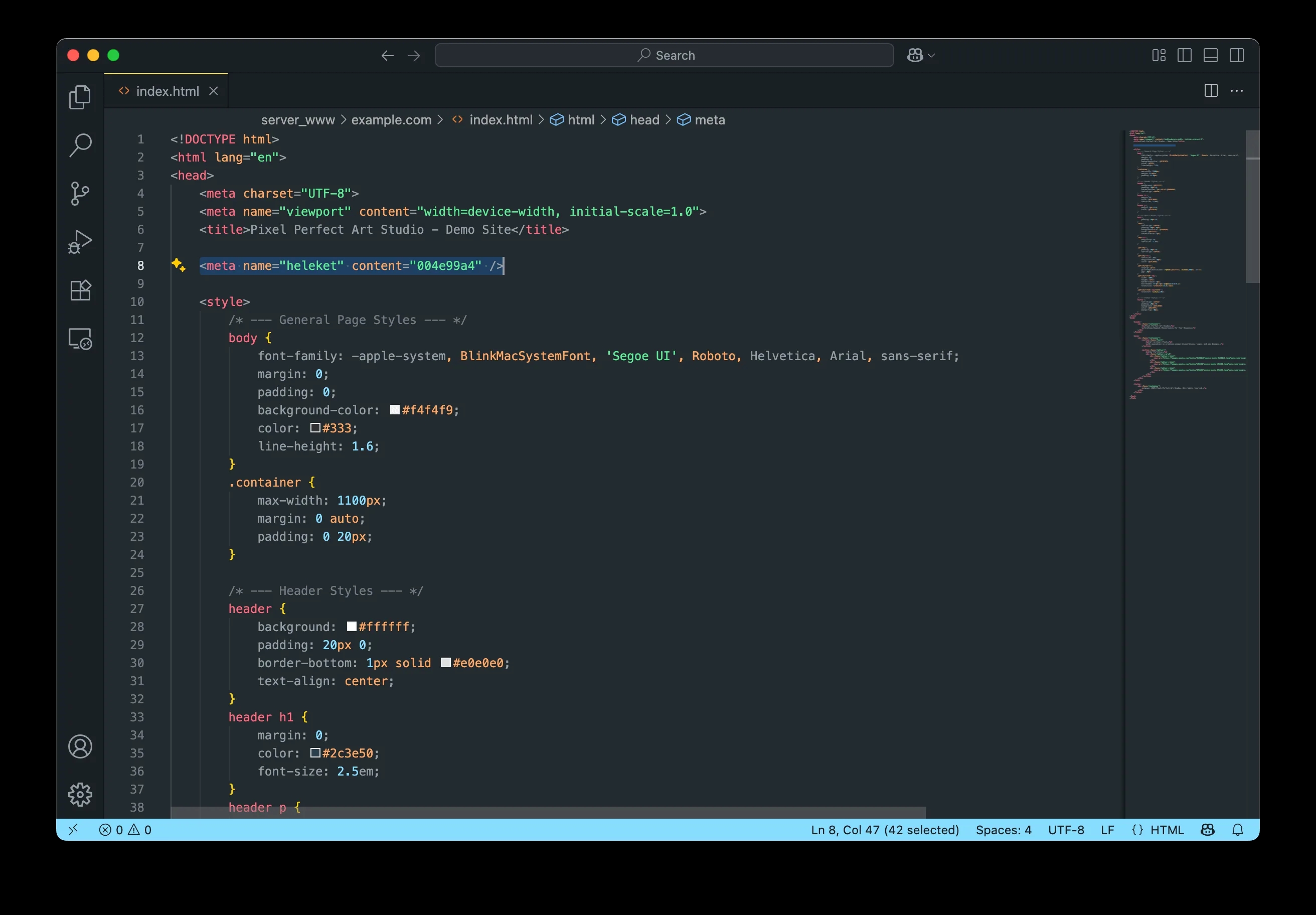
Open the file in any code editor, paste the copied meta tag into the <head> section and save the changes.
Save the modified file on the server, replacing the old version with it.
Go to your website, press F12 on your keyboard, and view the code elements of our website. Check for the 'heleket' tag.
In your Heleket account, click the 'Verify' button. If everything was done correctly, the status will change to 'Confirmed'. Submit a moderation request by clicking the 'Confirm' button.
Using an HTML file
On the Domain Verification page, upload the generated file.
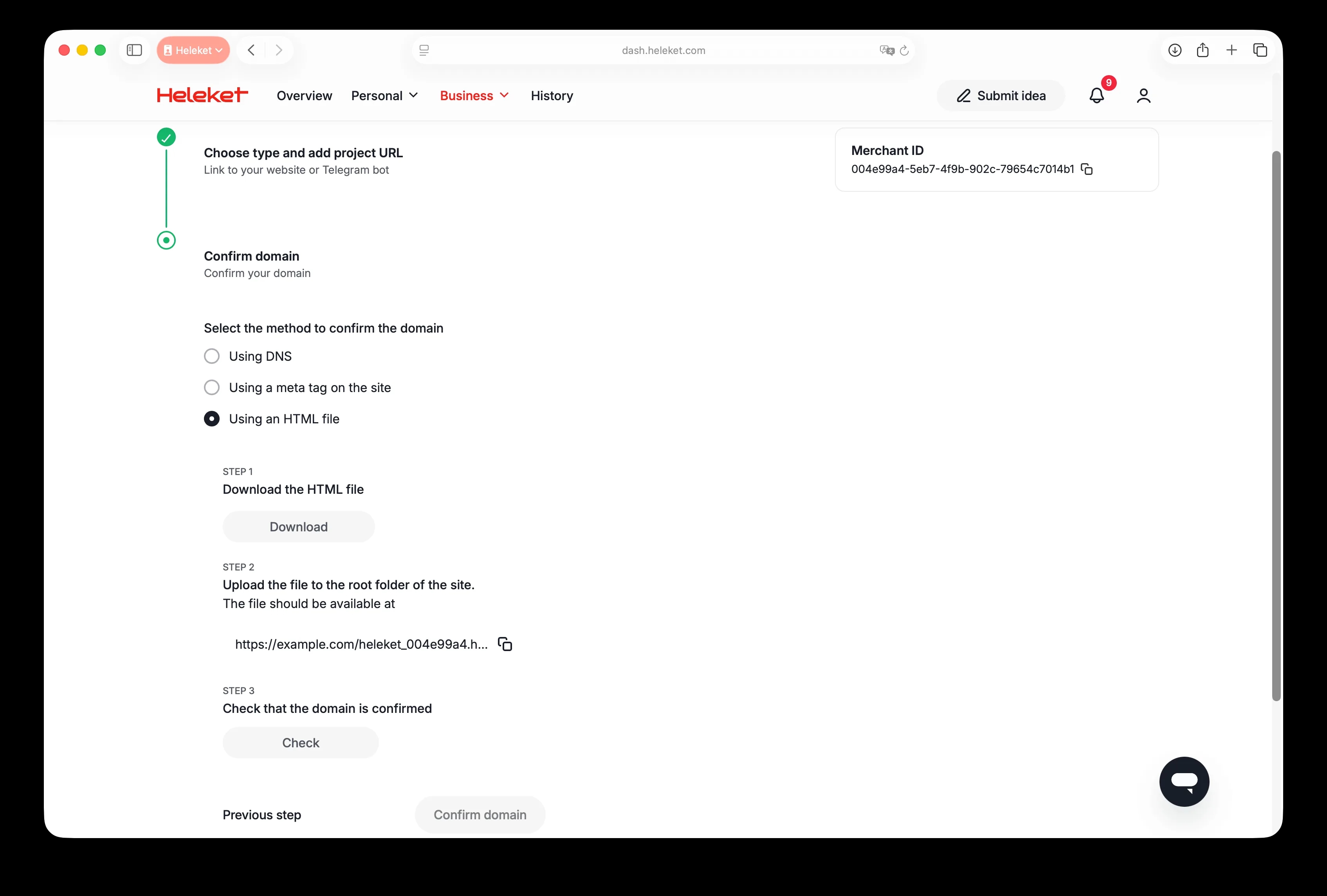
Method 1: Your hosting has a built-in file manager (e.g. cPanel, Plesk, etc.).
Upload the downloaded verification file to the root folder of your website.
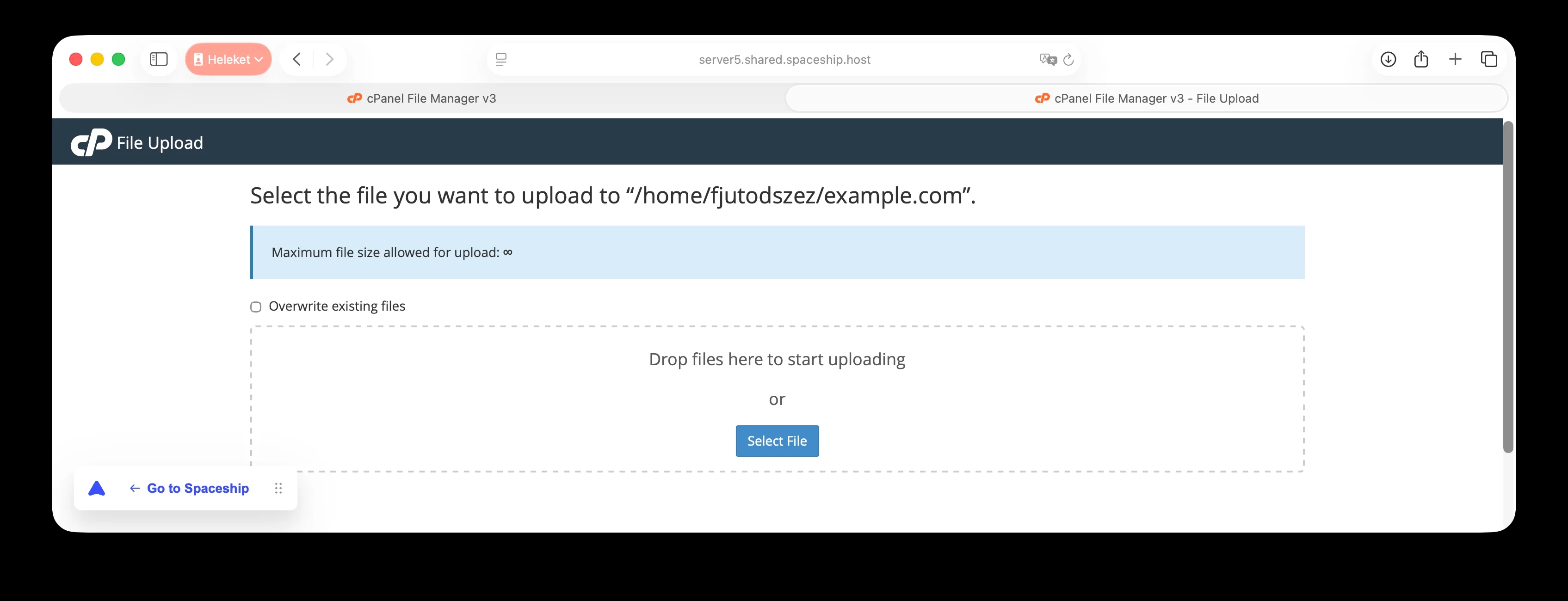
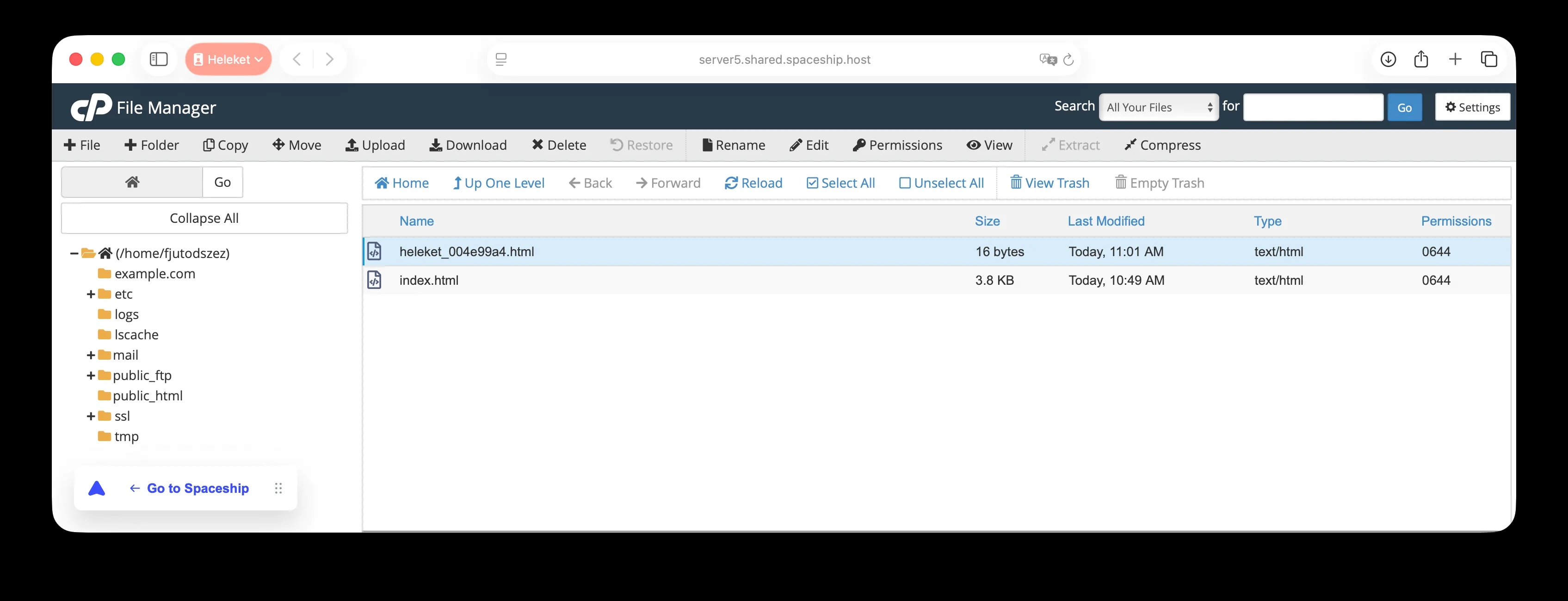
Verify the download is complete. Follow the link provided on the confirmation page in your Heleket account (step 1). Once the page loads, a confirmation code should appear.

Method 2: Your hosting does not have a file manager and requires an SFTP/FTP connection (e.g. DigitalOcean, AWS, Vultr).
Connect to your server using any SFTP/FTP client (e.g. FileZilla, Cyberduck) using your credentials.
Go to the root directory of your website (for example, /var/www/example.com/).
Upload the downloaded file to this directory.
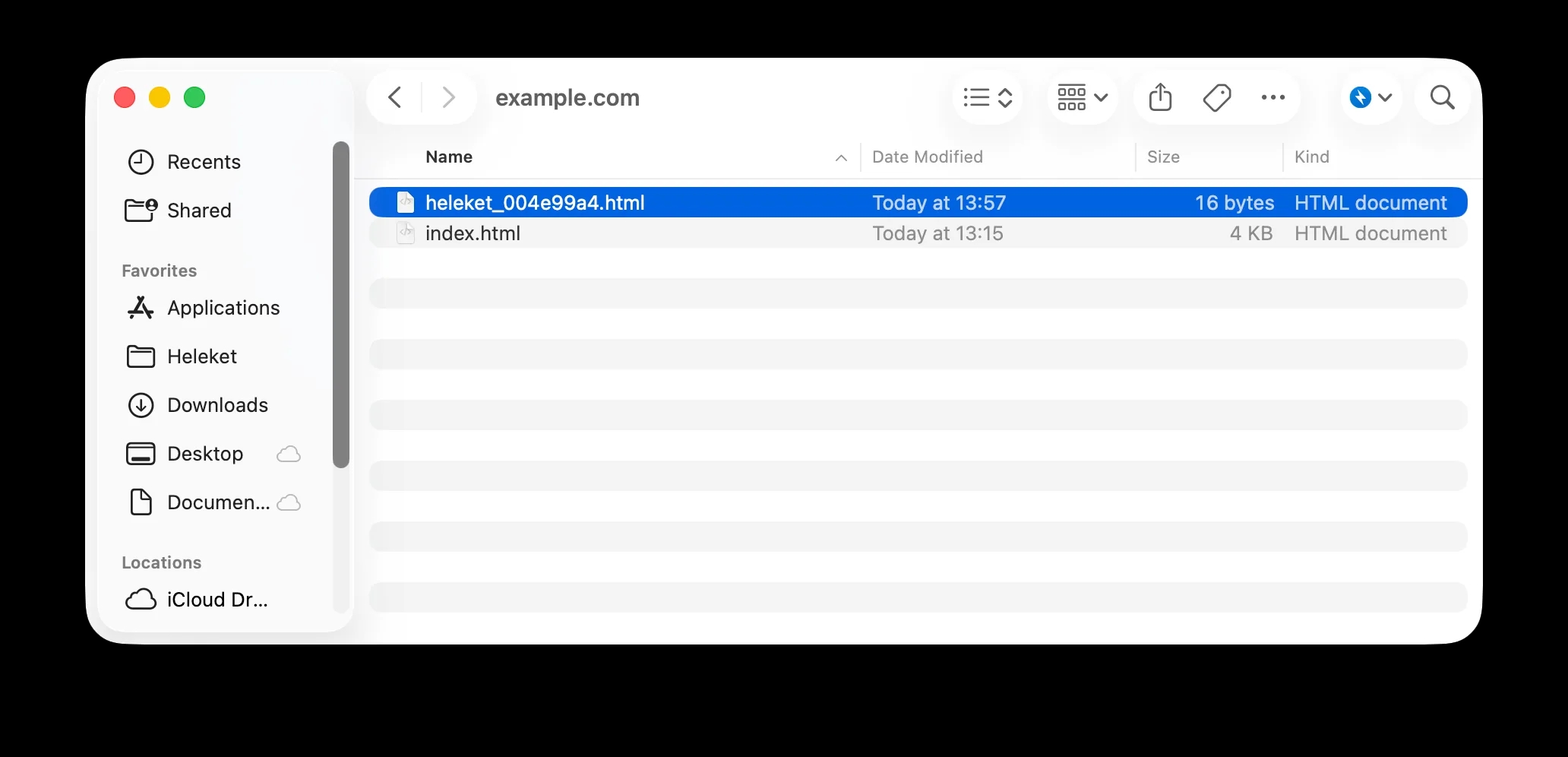
Verify the download is complete. Follow the link provided on the confirmation page in your Heleket account (step 1). Once the page loads, a confirmation code should appear.
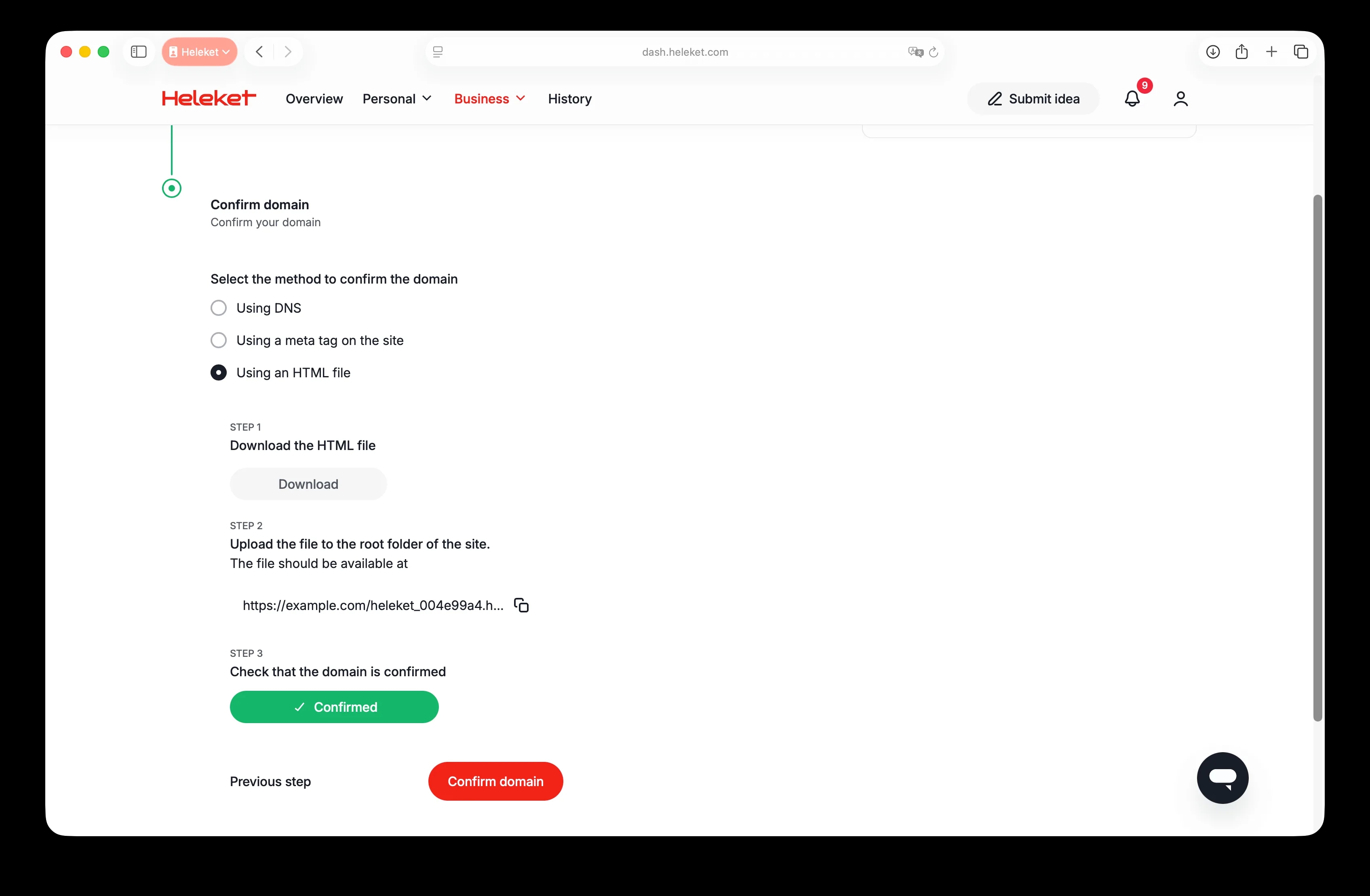
Log in to your Heleket account and click "Verify." The message "Verified" should appear. Click "Confirm" and your request will be sent for moderation.
Telegram bot (for verifying ownership via bot)
Confirm your Telegram bot ownership
After filling in all the required information about your bot on the merchant settings page, click "Submit."
Get the "code," then go to @botfather, select /setabouttext, and enter the 8-digit code. Please note that Telegram typically updates the bot description within a few minutes.
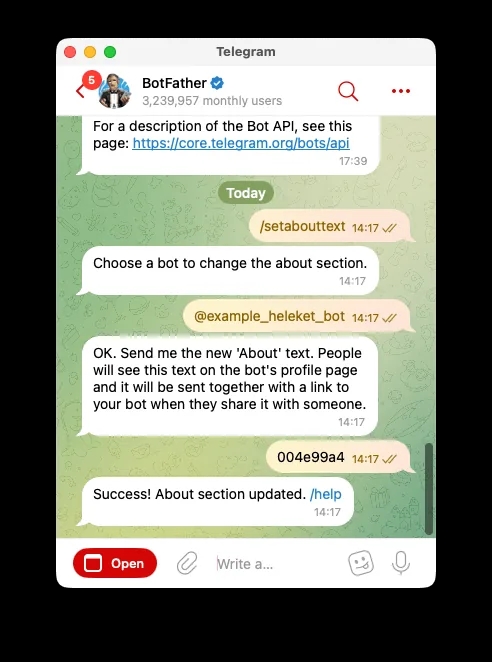
Log in to your Heleket account and click "Verify." You should see the message "Verified." Click "Confirm" and your request will be sent for moderation.
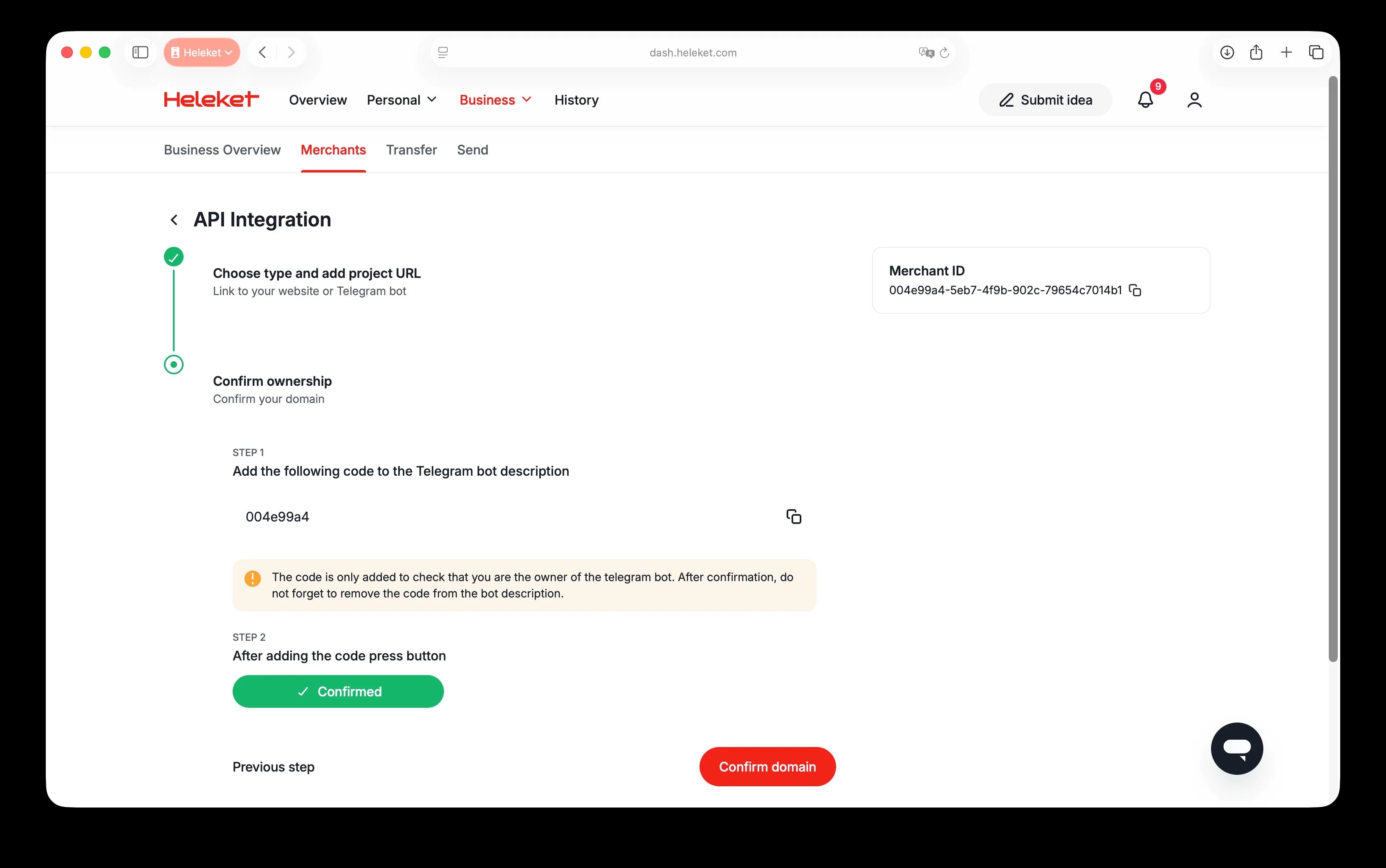
Once you've successfully verified your Telegram bot ownership, you can remove the code from the description. At this point, your project is ready for moderation, which typically takes 12 hours.